Insights
How to create a WhatsApp Business account: Setup made simple
Every business on WhatsApp – whether it runs the free app or an enterprise messaging stack – needs a WhatsApp Business Account (WABA): the account that holds your phone number, display name, and business identity. Creating one takes minutes; understanding your options before you do saves weeks of rework.
If you’ve started exploring WhatsApp for your company, you’ve probably hit the confusing part: different apps, an API, providers, verification badges, and an acronym soup where “WhatsApp Business” can mean four different things. You’re not alone – the account structure is the piece almost every guide skips.
In this guide, we’ll break down what a WhatsApp Business account is, the requirements, the three ways to create one, and how to get the verified badge that makes customers trust your messages.
What is a WhatsApp Business account?
A WhatsApp Business Account (WABA) is your official business identity on WhatsApp. It’s what lets you message customers commercially – personal WhatsApp accounts aren’t allowed for business use – and it’s the container for your phone number(s), display name, profile, and message templates, whether you use the free app or the WhatsApp Business Platform (API).
Quick decoder for the terms you’ll meet along the way:
- WhatsApp Business app – the free small-business app (one phone plus up to four linked devices).
- WhatsApp Business Platform (API) – the paid, scalable product for teams, accessed through a provider. Here’s how the versions compare.
- BSP (Business Solution Provider) – a Meta-vetted partner, like Sinch, that provides API access and tooling.
- WABA – the account underneath any of the above. That’s what you’re creating today.
WhatsApp is where your customers already are – 3.3 billion+ monthly active users, with 175 million people messaging a business on WhatsApp every day. Setting up the account properly is the whole ballgame.
Before you create a WhatsApp Business account: what you need
The requirements are light, but each one can stall your setup if it surprises you:
- A phone number for WhatsApp. It must be able to receive an SMS or voice-call verification and can’t already be tied to another WhatsApp account. Landlines work (choose voice verification).
- A Meta Business account (for the platform path) – the identity Meta uses to verify your company.
- Basic business details: legal name, address, website or social presence, and a display name that follows WhatsApp’s naming rules – it should match your brand, not a generic keyword.
- Customer opt-ins – not required to create the account, but required before you send proactive messages, so start collecting early.
How to create a WhatsApp Business account: 3 ways
1. Through the WhatsApp Business app (minutes, small scale)
- Download the WhatsApp Business app from the App Store or Google Play.
- Register your business phone number and verify it by SMS or call.
- Set up your profile: display name, photo or logo, business hours, description, and catalog.
- Configure greetings, away messages, quick replies, and labels.
Your WABA is created automatically behind the scenes. This path is right for small teams doing manual, low-volume chat – with the caveat that the app’s limits (device caps, no integrations, no templates) arrive quickly as you grow.
2. Through a Business Solution Provider (the platform path)
If you need automation, team inboxes, campaigns, or CRM integration, create your WABA through a BSP like Sinch:
- Sign up with the provider – for example, Sinch Engage (no-code) or the Conversation API (developer-first).
- Complete the embedded signup flow: connect or create your Meta Business account, register your number, and set your display name – guided, in minutes.
- Verify your business with Meta (the provider walks you through the documentation).
- Submit your first message templates and connect your CRM, help desk, or inbox.
- Start messaging – and let your sending limits scale as quality holds.
Already have a WABA? You can share it with a provider instead of starting over: in Meta Business Suite, assign the partner’s Business ID with the right permissions, and they can manage templates, sending, and analytics on your behalf.
3. Through Meta Business Suite (rolling out)
Meta is gradually enabling WABA creation directly in Business Suite (Settings → Accounts → WhatsApp accounts). Availability varies by region – check Meta’s documentation for current support in your market. It creates the same account structure; most businesses still find the provider path faster because the tooling comes attached.
Regular vs. official: the two types of WhatsApp Business accounts
Every WABA starts as a regular business account – it shows your phone number and profile details, and anyone can create one.
An official business account adds the verified badge – the blue checkmark (formerly the green tick) – and displays your business name instead of a bare number, even to customers who haven’t saved your contact. Verified accounts also don’t automatically trigger the “Report” or “Block” prompts new numbers get. The result? Instant recognition, more trust, and typically better open rates.
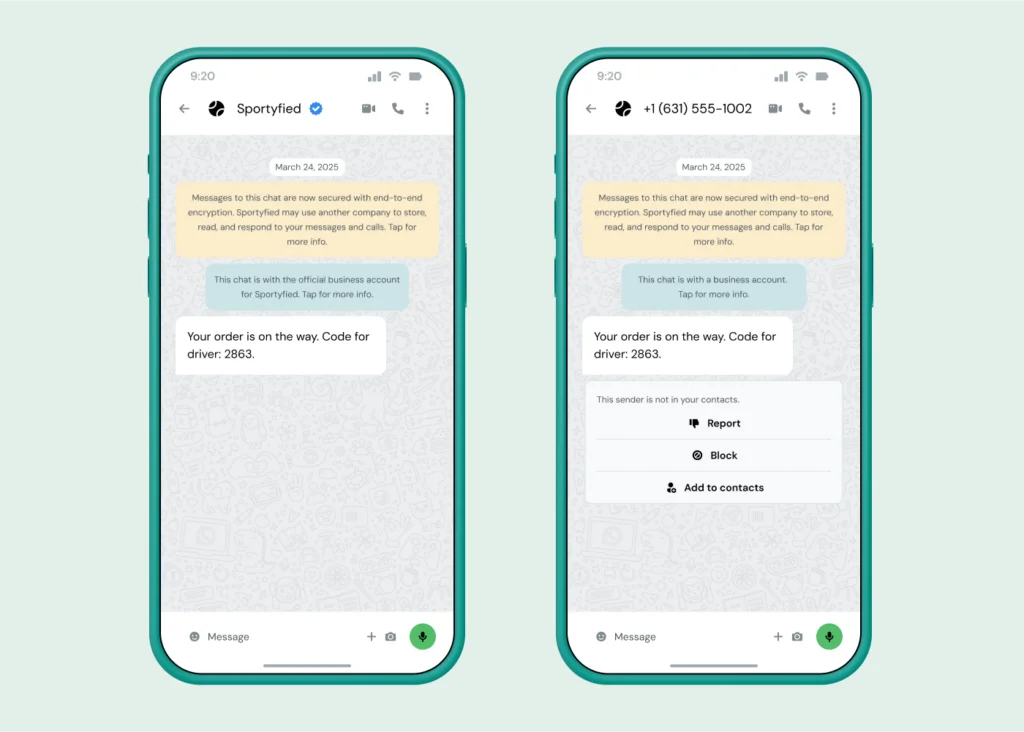
To qualify, your business needs an established online presence, consistent branding, and legitimate operations – and you’ll need to be an API user or hold a Meta Verified subscription. Meta reviews your documentation; a BSP can help you prepare the submission. Our verification guide has the step-by-step.
What your account unlocks
Once the WABA exists, the tools depend on which product sits on top of it:
- With the free app: profile, catalog, quick replies, greetings and away messages, labels – manual but genuinely useful at small scale.
- With the platform: message templates for campaigns and notifications, chatbots, WhatsApp Flows for in-chat forms and bookings, bulk sending, click-to-WhatsApp entry points, catalogs with in-chat payments in select markets, and integrations with tools like Shopify, HubSpot, and Zoho.
For what businesses build with all that – marketing, support, and commerce use cases with real results – see our WhatsApp Business API guide.
A word on data protection
Where your customer data lives, and under what agreements, differs sharply between the free app and the platform. The app syncs contacts to your phone and processes data under consumer-grade terms – something to review carefully with your privacy team if you operate under regulations like the GDPR. The platform path lets you put proper guardrails in place: data processing agreements, regional data residency options, and transport-encrypted messaging through your provider – see our WhatsApp data protection guide.
Pro tip: Choose a provider that publishes clear data processing agreements and offers data residency options in your markets – it turns compliance reviews from weeks into days.
Set up your WhatsApp Business account with Sinch
Creating a WhatsApp Business account is the easy part – creating one that’s ready to scale, verified, and properly integrated is where a partner earns its keep. As a Meta Premier Partner, Sinch handles the embedded signup, business verification, templates, and integrations, whether you want the no-code route or the API.
Ready to create your WhatsApp Business account? Get started with Sinch Engage, or talk to our team about the best setup for your business – we’re excited to help!
Frequently asked questions
Creating a WABA is free, and the WhatsApp Business app costs nothing to use. The platform (API) is paid – per delivered template message plus provider fees. See our pricing guide.
No – commercial use of personal WhatsApp violates WhatsApp’s terms and risks your account being banned. Register a business number on a proper WABA instead.
Yes. Choose the voice-call verification option during setup; the number just can’t be attached to another WhatsApp account.
Account creation takes minutes. Meta’s business verification typically takes a few business days depending on documentation; the verified badge (official business account) is a separate review with stricter criteria.
The WABA is the account structure; the app is one of the products that runs on it. The same WABA concept underpins the platform – which is why you can start on the app and move to the API without changing identity.
On the app, one phone plus up to four linked devices. On the platform, unlimited agents through a shared inbox – that’s usually the reason teams upgrade.
This article was originally written by Marinela Potor and was updated by Drew Wilkinson on September 1, 2026.

Author: