Developers
Sinch Agent Tools for Coding: How we solved AI hallucinations for Sinch integrations
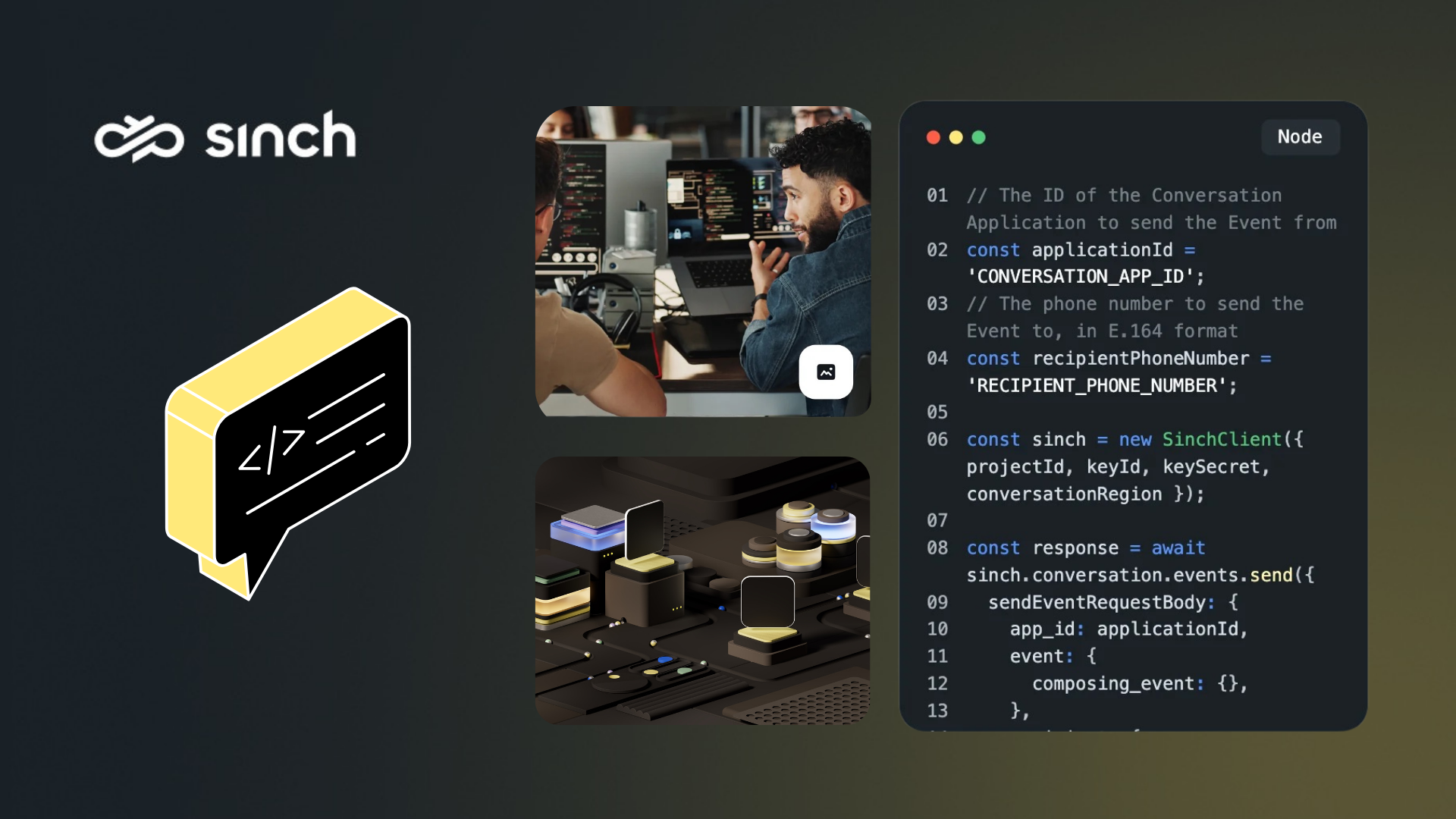
The first hour with a communications API decides whether you keep going. You want to send one test message and see it work. Instead you are tabbing between your editor, a dashboard, a docs site, and a terminal, copying keys between browser windows before you have written a single line that matters.
It gets harder when you hand the work to an AI assistant. Ask Cursor, Claude Code, or GitHub Copilot to write a Sinch integration and it will often produce code that compiles and then fails at runtime, because the model is guessing from a stale, training-time snapshot of the API.
Sinch Agent Tools for Coding fixes both problems. It’s a toolkit that brings testing and validation into the editor you already use, and gives your AI assistant the live Sinch API contract to write against.
What is Sinch Agent Tools for Coding?
Sinch Agent Tools for Coding, or simply Sinch Agent Tools, is a set of editor extensions, MCP servers, and Skills that connect your AI assistant to the live Sinch API. It’s built for anyone writing a Sinch integration with tools like VS Code, JetBrains, Cursor, Claude Code, or Windsurf.
The toolkit includes:
- Editor extensions that bring live testing into VS Code, JetBrains, and Cursor
- a Docs MCP that gives any AI assistant the current API contract
- and a Skills package that teaches it the operational rules a schema can’t cover.
We explain how these tools apply to your workflow below.

For VS Code and JetBrains: send your first SMS without leaving your IDE
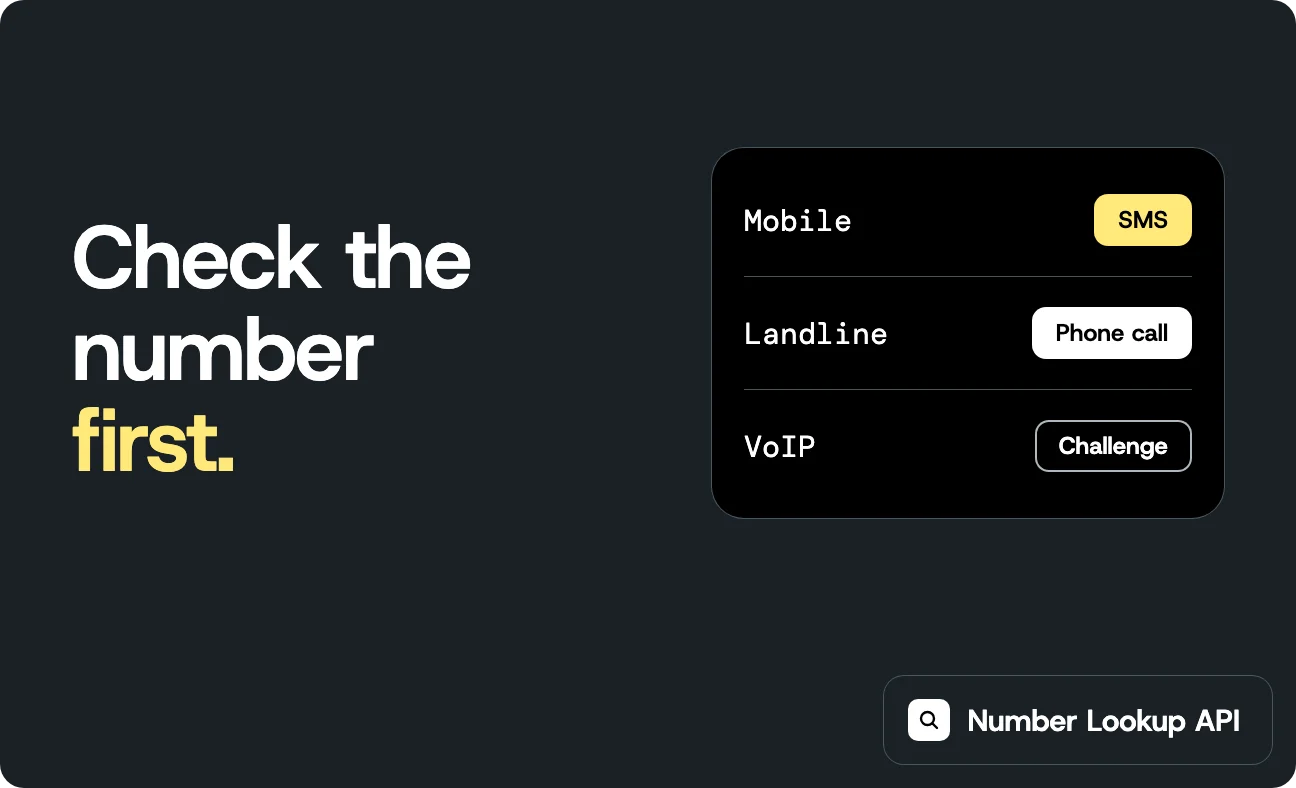
The Sinch extension for VS Code lets you send SMS and RCS, validate phone numbers and email addresses, test webhooks, and generate code snippets, all inside the editor.
Start with Simulator Mode. It runs a real request and response flow from the IDE, no Sinch account required, so you can see how an integration behaves before you commit to anything. Trying Sinch takes a few minutes. When you’re ready for live calls, a Build Dashboard signup takes it from there. The extension can also generate an AGENTS.md file for your project, which gives GitHub Copilot accurate Sinch API context while you code.
The same capabilities ship as a JetBrains plugin for IntelliJ and the wider JetBrains range, reaching the enterprise Java and backend engineers who write server-side integrations. The extension is also published to the Open VSX registry, so it runs in Windsurf, Antigravity, Cursor, and any editor that pulls from Open VSX.
For Cursor: get Sinch with one install
Building in Cursor and need messaging working? Normally that’s two separate searches: one for the package, one for docs current enough for your assistant to code against. The Sinch listing on the Cursor Marketplace collapses that into one install: it brings in the Skills package, which teaches your assistant how to write Sinch code correctly, and the self-hosted MCP server, which lets your agent call the Conversation API directly for testing and automation.
Get Sinch on the Cursor Marketplace or read more about the Sinch + Cursor integration.
For your AI assistant: connect Docs MCP and Skills to write Sinch code
Not using VS Code, JetBrains, or Cursor? You can still connect two things directly to your assistant: the Docs MCP and the Skills package. Together, they cover the two halves of the problem: what the API looks like today, and how to use it correctly.
The Docs MCP is a hosted, read-only endpoint that needs no authentication and works with any MCP-compatible toolchain, including Claude Code, Cursor, and VS Code or JetBrains with GitHub Copilot:
https://developers.sinch.com/mcp
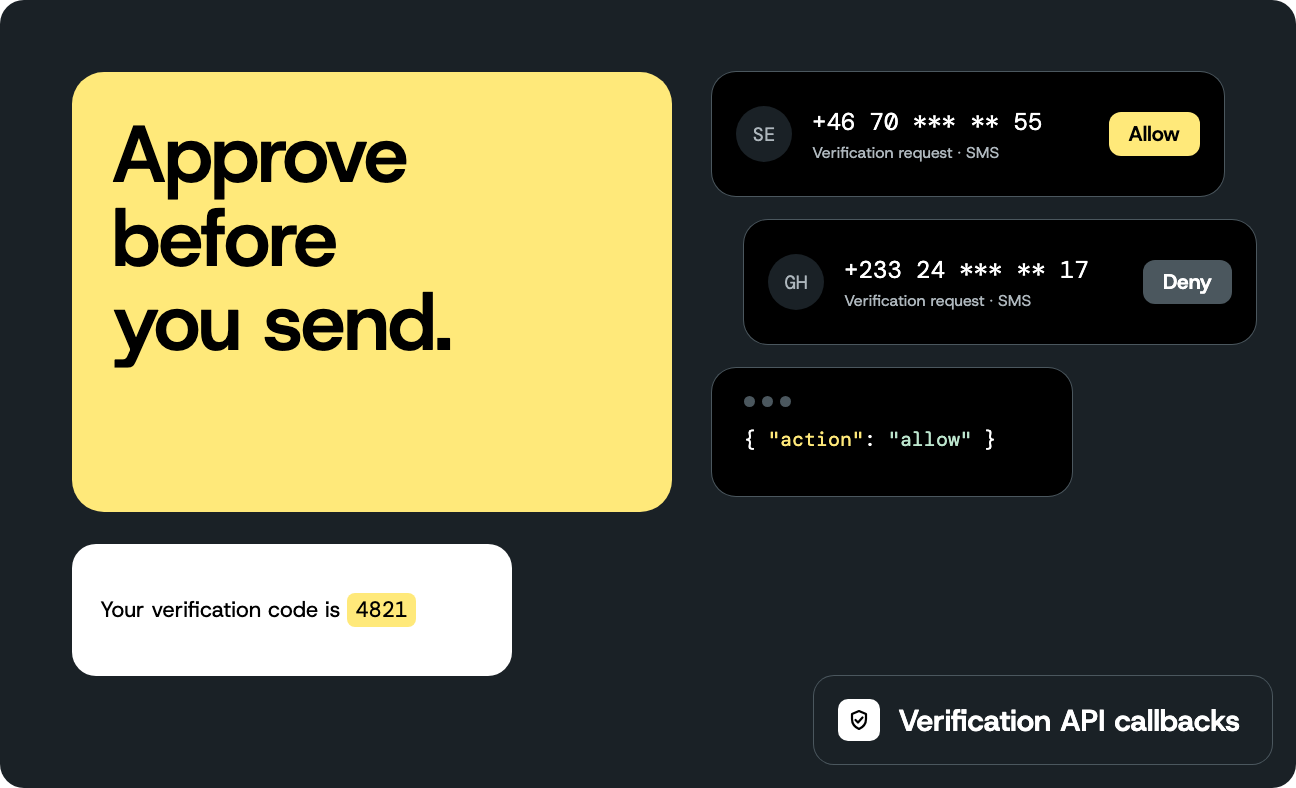
It exposes seven tools that let an assistant discover which Sinch APIs exist, enumerate endpoints, pull full request and response schemas, confirm auth requirements, and search conceptual guides, including full OpenAPI schema retrieval. Connect it and your assistant checks the real API contract before it writes anything, instead of guessing.
The Skills package covers what a schema cannot. These are structured knowledge files your assistant loads before it writes code: which channel to use for which country, auth patterns per API, WhatsApp template pre-approval rules, and common failure modes. Skills tell your assistant how to use Sinch correctly. The Docs MCP tells it what the current contract is.
Neither is enough alone. Skills without the Docs MCP write well-structured code against schemas that may be out of date. The Docs MCP without Skills writes schema-accurate code that ignores operational rules. Used together, they are designed to reduce the broken and hallucinated calls that come from incomplete context, so more integrations run on the first attempt.
The self-hosted MCP server: for agents that run calls, not write them
This is a different tool for a different job. It runs on your own machine and lets an agent call the Conversation API directly, for testing and workflow automation — it doesn’t write code. Think of it this way: the Docs MCP hands your assistant documentation to code with. The self-hosted MCP server actually places the calls.
Where to find Sinch Agent Tools for Coding
Start at the hub: sinch.com/ai/agent-tools
Prefer to go straight to your editor’s marketplace? You’ll find us here too:
- VS Code Marketplace for the VS Code extension
- JetBrains Marketplace for IntelliJ and the JetBrains range
- Open VSX for Windsurf, Antigravity, Cursor, and other open-source editors
- Cursor Marketplace for AI-native developers
- github.com/sinch/sinch-plugins for the Claude Code and Gemini CLI plugins, installed straight from the repo
Get started
If you want to try it without an account, install the VS Code or JetBrains extension and turn on Simulator Mode. If you are wiring up an assistant to write code, connect the Docs MCP at developers.sinch.com/mcp and add the Skills package. When you are ready for live calls, sign up at dashboard.sinch.com.
Whichever way you build, you get the same direct path to the Sinch platform, backed by a 99.99% uptime SLA and direct connections to major mobile networks. Install it, send a message, and tell us what you build.
Common questions
Do I need a Sinch account to try it?
No. Simulator Mode lets you test in the editor without an account, and the Docs MCP needs no authentication. A Build Dashboard signup is required only for live API calls.
Which IDEs are supported?
VS Code, the full JetBrains range including IntelliJ, and any Open VSX editor such as Windsurf, Antigravity, and Cursor.
What is the Sinch Docs MCP?
A hosted, read-only endpoint at developers.sinch.com/mcp that gives your AI assistant structured access to Sinch’s live API documentation and schemas. It works with any MCP-compatible IDE or agent toolchain.
How are the Docs MCP and Skills different?
Skills tell your assistant how to use Sinch correctly, such as channel choice and auth patterns. The Docs MCP tells it what the current API contract is. They’re a matched pair.
What’s the difference between the Docs MCP and the self-hosted MCP?
The Docs MCP is read-only and supplies documentation for code generation. The self-hosted MCP server executes Conversation API calls for testing and automation.
Where can I explore the full toolkit?
Visit sinch.com/ai/agent-tools for MCP, Skills, the CLI, SDKs, Functions, and plugins in one place, or go directly to the VS Code Marketplace, JetBrains Marketplace, Open VSX, Cursor Marketplace, or http://github.com/sinch/sinch-plugins for the Claude Code and Gemini CLI plugins.

Author: