Developers
Build a Facebook Messenger AI chatbot with OpenAI and Sinch Functions
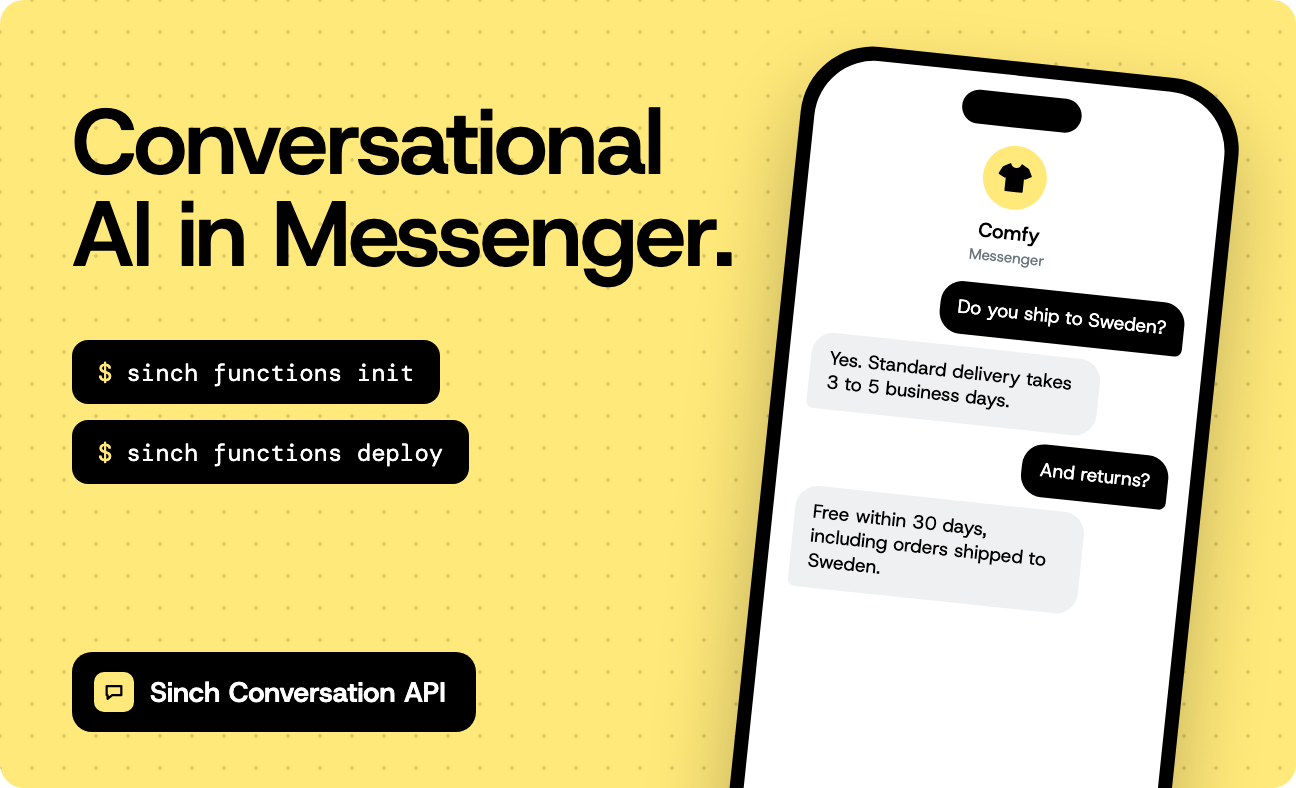
In How I built a voice IVR with Sinch Functions, a phone call arrived at a function and the function decided what to say. This post does the same for messaging. Someone sends a message to your Facebook Page, a Sinch Function asks OpenAI for an answer, and the reply goes back to the same person. The bot remembers the conversation without a database. You’ll scaffold it from a Sinch Functions template in C#, connect it to a Page through the Sinch Conversation API, and deploy it. If you haven’t used the Sinch CLI yet, Build, operate, automate with the Sinch CLI covers the basics.
You’ll need
- A Sinch account with a Conversation API project, and the Sinch CLI (
npm install -g @sinch/cli, thensinch auth login) - A Facebook Page you’re an admin of, connected to a Facebook Business Account, with a Messenger button on it, and a second Facebook account to message it from
- An OpenAI API key with billing enabled
- The .NET 10 SDK (
dotnet --list-sdksshould show a 10.x entry), because the deploy builds your function locally first - Node.js, for the CLI
Sinch messaging and OpenAI usage are both billable.
How it works
A message goes through five steps:
- Someone messages your Page on Messenger.
- The Conversation API sends a
MESSAGE_INBOUNDcallback to your function at/webhook/conversation. - Your
MessageInboundhandler reads the text and looks up the ID of the last OpenAI response for this contact. - It calls the OpenAI Responses API with that ID as
previous_response_id, so OpenAI adds the new message to the existing thread. - It stores the new response ID and sends the answer with
Reply, which goes back on the channel the message came in on.
OpenAI keeps the thread, and your function keeps one small value per contact, the ID of the latest response. The value lives in the Sinch Functions cache, which is persistent and shared across invocations. It expires 24 hours after the last message, so a conversation that goes quiet for a day starts fresh.
Create the Conversation API app
The function needs an app to talk to. Create one with the processing mode set to Conversation. The app is created in the US region, which the dashboard shows as Region on the app’s page. In that mode the Conversation API tracks each person as a contact and puts a contact_id on every callback, which is what the bot uses as its memory key.
sinch conversation apps create messenger-ai-chatbot --processing-mode CONVERSATION
                                    Creating app...
✔ App created successfully!

ℹ App ID: 01M782J7NVRVEY8WC6H315JXCJ
ℹ Display Name: messenger-ai-chatbot
Keep the app ID. You’ll use it as YOUR_APP_ID below.
Connect Messenger
Open the app in the Sinch Build Dashboard under Conversation API, Apps. On the app’s page, scroll to Set up channels and select Set up channel next to Facebook Messenger.
The configuration page asks for an Account association type:
- User access token uses your personal Facebook credentials.
- System User access token uses Business Account credentials. This walkthrough uses it.
Either way you need a Facebook Business Account with the Page connected to it, and you need to be an admin of that Page. Select Continue with Facebook. A Facebook dialog opens and walks you through it:
- Log in with the account that admins the Page. If you’re logged in as someone else, Facebook asks you to switch accounts first.
- Under Select the business assets to share, choose your Business portfolio and your Page. If the Page isn’t in that portfolio yet, Facebook says it will be shared with it when you continue.
- On the review screen, check what you’re granting and select Confirm. The app asks to manage and access Page conversations in Messenger, read content posted on the Page, manage the Page’s accounts, settings, and webhooks, and show a list of the Pages you manage.
Facebook then shows Connecting your account for a few moments. If it stalls, select Retry. When it confirms the connection, select Finish. Back in the dashboard, the State on the Messenger configuration page reads Activating channel. Wait for it to change to Active. The whole connection took us less than two minutes.
The Messenger set-up guide has the details for each token type. Two things to know:
- Connect one new Page at a time, and leave previously connected Pages selected. Deselecting a Page removes it from the app.
- A Page can’t start a conversation through the Conversation API. The person has to message first, which is how this bot works anyway.
Create the function
Run sinch functions init and answer the prompts. It scaffolds the project from the messenger-openai-chatbot template and fills in the configuration for you:
sinch functions init
| Prompt | Answer |
|---|---|
| Choose a runtime | C# (.NET) |
| Choose a template | messenger-openai-chatbot |
| Function name | messenger-ai-chatbot |
| Sinch Conversation API App ID | Your YOUR_APP_ID from earlier |
| Region of your Conversation API app | US, the region of the app you created |
| OpenAI model to use for responses | Press Enter for the default, gpt-6-luna |
| System prompt for AI personality | Press Enter for the default, or write your own |
| Your SMS sender number | Leave empty for Messenger |
| Your OpenAI API key | Paste your OpenAI API key |
| Auto-configure conversation integration on deploy? | Yes |
| Enable a database for this function? | No database |
OPENAI_MODEL is the model the bot uses, and gpt-6-luna is the template default. To use another model, pick one from OpenAI’s model list. The SMS sender number only matters when the app has an SMS channel without a default sender. The Auto-configure answer is what makes deploy create the Conversation API webhook for you.
Init stores the OpenAI key as a .NET user secret, so it never lands in a file you could commit. When it finishes, move into the new folder:
cd messenger-ai-chatbot
The ones you’ll touch from here are Function.cs, the handler, and appsettings.json, which now holds your answers:
                                    {
  "CONVERSATION_APP_ID": "YOUR_APP_ID",
  "CONVERSATION_REGION": "US",
  "OPENAI_MODEL": "gpt-6-luna",
  "SYSTEM_PROMPT": "You are a helpful customer service assistant. Be concise and friendly.",
  "FROM_NUMBER": "",
  "OPENAI_API_KEY": ""
}
CONVERSATION_REGION comes from the region prompt. OPENAI_API_KEY stays empty in the file on purpose. The key lives in your user secrets, and the deploy ships it to your function as a secret.
What the handler does
Everything happens in MessageInbound. Here’s the method. It leans on three constants and three small helpers further down in Function.cs:
                                    public override async Task<IActionResult> MessageInbound(MessageInboundEvent inbound)
{
    var contactId = inbound.GetContactId();

    // The Conversation API retries a callback on timeouts and errors, so the same message can
    // arrive twice. Mark it before any OpenAI or send call, so a retry that lands while the first
    // delivery is still waiting on OpenAI is dropped too. Exists-then-Set is not atomic: two
    // deliveries milliseconds apart can both pass.
    var messageId = inbound.Message?.Id;
    if (!string.IsNullOrEmpty(messageId))
    {
        var seenKey = $"conversation:seen:{messageId}";
        if (await Context.Cache.Exists(seenKey))
        {
            Logger.LogDebug("Ignoring duplicate delivery {MessageId}", messageId);
            return Ok();
        }

        await Context.Cache.Set(seenKey, "1", ttlSeconds: TtlSeconds);
    }

    // A button or quick-reply tap arrives as postback data: treat it as what the user said.
    var userText = inbound.GetText() ?? inbound.GetPostbackData();
    if (string.IsNullOrEmpty(userText))
    {
        Logger.LogDebug("Non-text message from {ContactId}", contactId);
        await SendReplySafelyAsync(inbound, NonTextReply, contactId);
        return Ok();
    }

    // One OpenAI thread per sender. Without a contact id, fall back to the channel identity;
    // with neither, reply without memory rather than share one key between senders.
    var cacheKey = ConversationCacheKey(inbound, contactId);
    var previousResponseId = cacheKey is null ? null : await Context.Cache.Get(cacheKey);

    try
    {
        if (_openAI is null) throw new InvalidOperationException("OPENAI_API_KEY not configured");

        var options = new CreateResponseOptions
        {
            Model = _model,
            Instructions = Configuration["SYSTEM_PROMPT"]
                ?? "You are a helpful customer service assistant. Be concise and friendly.",
            PreviousResponseId = string.IsNullOrEmpty(previousResponseId) ? null : previousResponseId
        };
        options.InputItems.Add(ResponseItem.CreateUserMessageItem(userText));

        ResponseResult response;
        try
        {
            response = (await _openAI.CreateResponseAsync(options)).Value;
        }
        catch when (cacheKey is not null && !string.IsNullOrEmpty(previousResponseId))
        {
            // Any failure of this call clears the stored response id: a refused id (expired,
            // or from another model), but also a timeout or a 429. The next message then
            // starts a fresh thread instead of failing the same way forever.
            await ForgetResponseIdAsync(cacheKey);
            throw;
        }

        if (cacheKey is not null)
        {
            await Context.Cache.Set(cacheKey, response.Id, ttlSeconds: TtlSeconds);
        }

        await Context.Conversation!.Messages.Send(Reply(inbound, response.GetOutputText()));

        return Ok();
    }
    catch (Exception ex)
    {
        Logger.LogError(ex, "Error processing message from {ContactId}", contactId);
        await SendReplySafelyAsync(inbound, ErrorReply, contactId);
        return Ok(new { status = "error", message = ex.Message });
    }
}
The first block deals with retries. The Conversation API sends a callback again when it times out or gets an error, so the handler remembers each message ID for 24 hours and ignores a second delivery. A failed OpenAI call doesn’t lead to a retry: The handler catches it and returns 200.
A tapped button arrives as postback data, and the handler treats it as what the person said. A message with neither text nor postback data, such as an image, gets a short reply that the bot only reads text. Either way the handler returns 200, so the Conversation API knows the callback was handled.
The cache key openai:response:{contactId} gives each person their own thread. The entry is rewritten on every message, so the 24 hours count from the last one. If the callback has no contact ID, the key falls back to the channel and the sender’s identity on it. If the OpenAI call fails while a stored response ID is in use, the handler clears the ID, so the next message starts a new thread instead of failing the same way again.
The system prompt goes into every request, not only the first. OpenAI doesn’t carry Instructions over from the previous response in a chain, so a prompt you leave out of a later turn stops applying.
Reply builds the outbound message from the inbound one, so the answer goes to the same contact on the same channel. If something fails, the handler tries to send an apology and logs the real error.
Deploy
sinch functions deploy --public
Before it deploys, the CLI starts the function locally to check it. It warns that FROM_NUMBER is empty, which only matters for SMS, so answer Yes to “Deploy anyway?”. It also asks whether to generate documentation. You don’t need it for this post, so choose No – Skip documentation this time. If it asks which key the function should use, choose the managed key. That’s the default, and the CLI saves the choice in sinch.json, so later deploys don’t ask again. Pick the profile key only if you already manage function credentials yourself.
The --public flag makes the function reachable from the Conversation API. A private function isn’t, so callbacks would never arrive. Callbacks are signed. The deploy generates a secret, gives it to the function and sets it on the webhook, and the function rejects any callback that isn’t signed with it.
                                    ✔ Function deployed successfully

ℹ 🎉 Deployment Complete!
ℹ    Function: messenger-ai-chatbot
ℹ    Status: ✅ Running
ℹ    URL: https://drifting-lamp.fn.sinch.io

ℹ 💬 Conversation Integration:
ℹ    Conversation webhook set by the Functions API to: https://drifting-lamp.fn.sinch.io/webhook/conversation
Because CONVERSATION_APP_ID is set and Webhooks.AutoConfigureConversation is true, the deploy also sets up the webhook on your app. Check it:
sinch conversation webhooks list --app YOUR_APP_ID
                                    ℹ [01M7W1E4DNR4ZZG5NYMMA42KZJ]
ℹ   URL: https://drifting-lamp.fn.sinch.io/webhook/conversation
ℹ   Triggers: CONVERSATION_START, CONVERSATION_STOP, EVENT_INBOUND, MESSAGE_INBOUND, UNSUPPORTED
ℹ   Secret: ********
The target ends in /webhook/conversation and a secret is set. Your function URL will differ from the one shown.
Try it on Messenger
From your second Facebook account, message the Page. Ask something, then ask a follow-up that only works if the bot remembers the first message:
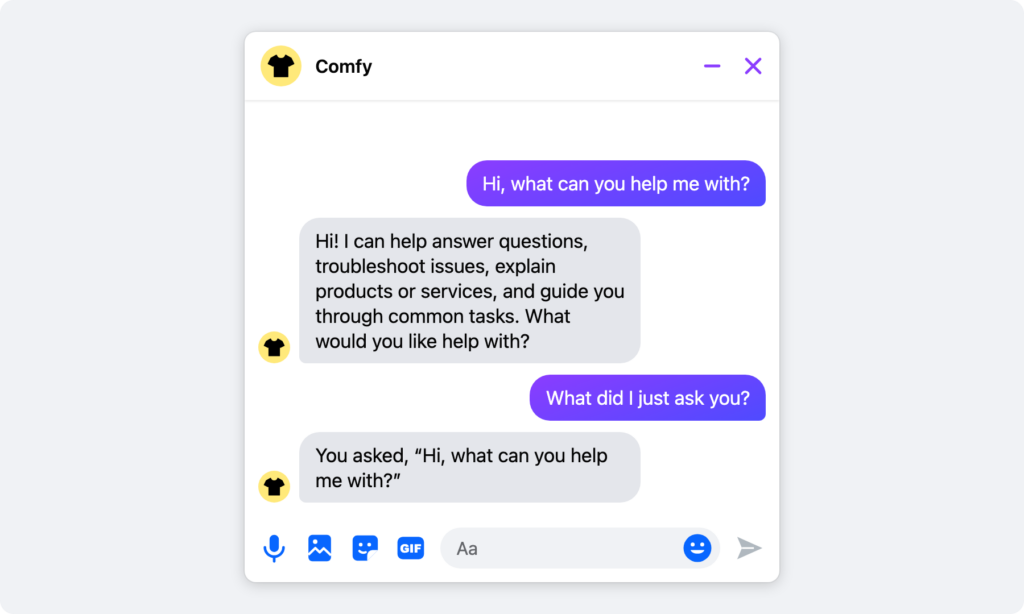
In my tests the function handled each message in two to three seconds. To watch the callbacks arrive, tail the function’s logs in another terminal:
sinch functions logs --follow
Each message shows up as a POST /webhook/conversation with the status code your handler returned.
Customize the bot
Two settings change the bot’s behavior without touching code. SYSTEM_PROMPT is where the bot’s job lives: replace the default with what your bot should do and what it should refuse, then redeploy. OPENAI_MODEL swaps the model, which changes speed and cost.
The same function on other channels
Nothing in the function is specific to Messenger. The handler reads the text of the inbound message, and Reply sends the answer back on the channel it arrived on. Add SMS, WhatsApp, RCS, Instagram, or any other supported channel to the same Conversation API app and the same code answers there. Each channel has its own set-up and rules, so follow its guide. On SMS, set FROM_NUMBER if the channel has no default sender.
A few things I learned building this
Memory without a database
The alternative to previous_response_id is to store each conversation yourself and send the whole thread on every turn. That means a table, a cleanup job, and a decision about how much history to keep. Chaining responses moves the thread to OpenAI, and the function keeps a single ID. The cost is that OpenAI bills all the earlier input tokens in the chain again on each turn, so long conversations get more expensive per message. The 24-hour window only resets conversations that go quiet. If people chat for a long time, cap the history or start a new chain after some number of turns.
Where the data lives
With the default settings, OpenAI keeps response objects for 30 days. Your function forgets the thread after 24 hours, but OpenAI still holds the content. If that doesn’t fit your data rules, read OpenAI’s data controls before you point the bot at real customers.
Troubleshooting
The bot doesn’t reply at all:
- Check the Messenger channel shows Active in the dashboard.
- Run
sinch conversation webhooks list --app YOUR_APP_IDand confirm the target ends in/webhook/conversation. - Redeploy with
sinch functions deploy --public. A private function never receives callbacks. - Open
sinch functions logs --followand send a message. If nothing appears, the callback isn’t reaching the function. If a request appears with an error status, the log shows why.
The bot replies “Sorry, I’m having trouble right now”:
- Read the error in the logs. A wrong
OPENAI_MODEL, a missing or invalid key, and an account without billing all end up here. - Set the key with
dotnet user-secrets set OPENAI_API_KEY YOUR_OPENAI_API_KEY, then redeploy. This leaves the key in your shell history, so clear that entry afterward.
The deploy stops with “Function failed to start within timeout”:
- Something else on your machine is using port 3000, and the CLI’s local check needs it. Stop that process and deploy again.
Clean up
When you’re done testing, remove what you created so the bot stops answering your Page. Start with Reset Integration on the Messenger channel in the dashboard. That doesn’t revoke the permissions you granted at login, so remove the app from the Page’s business integrations in Facebook as well. If you created an OpenAI key just for this, delete it in the OpenAI dashboard too.
Then find the function ID:
sinch functions list
Delete the function and the app:
                                    sinch functions delete YOUR_FUNCTION_ID
sinch conversation apps delete YOUR_APP_ID
What’s next
The next step is giving the bot something to work with, like a prompt that knows your product or a lookup against your own data before it answers.
Additional resources
- Sinch Functions templates
- C# runtime for Sinch Functions
- Configuration and secrets
- Sinch Functions architecture
- Set up a Facebook Messenger channel
- Conversation API callbacks
- Set up a WhatsApp channel
- Conversation API channel support
- OpenAI conversation state guide

Author: