Sinch Agent Tools · Plugins

Sinch plugins and integrations for your editor and AI agent

Sinch plugins and integrations put Sinch APIs inside the editor or AI tool you already work in. Connect your credentials once, then send messages, manage webhooks, and check your configuration without leaving your code.

  • Installs from the VS Code, JetBrains, Open VSX, and Cursor marketplaces

  • Connects Claude Code and Gemini CLI through the Sinch MCP Server

  • Installs in one click and runs on credentials you already have

The plugins are free. Live API calls need a Sinch account.
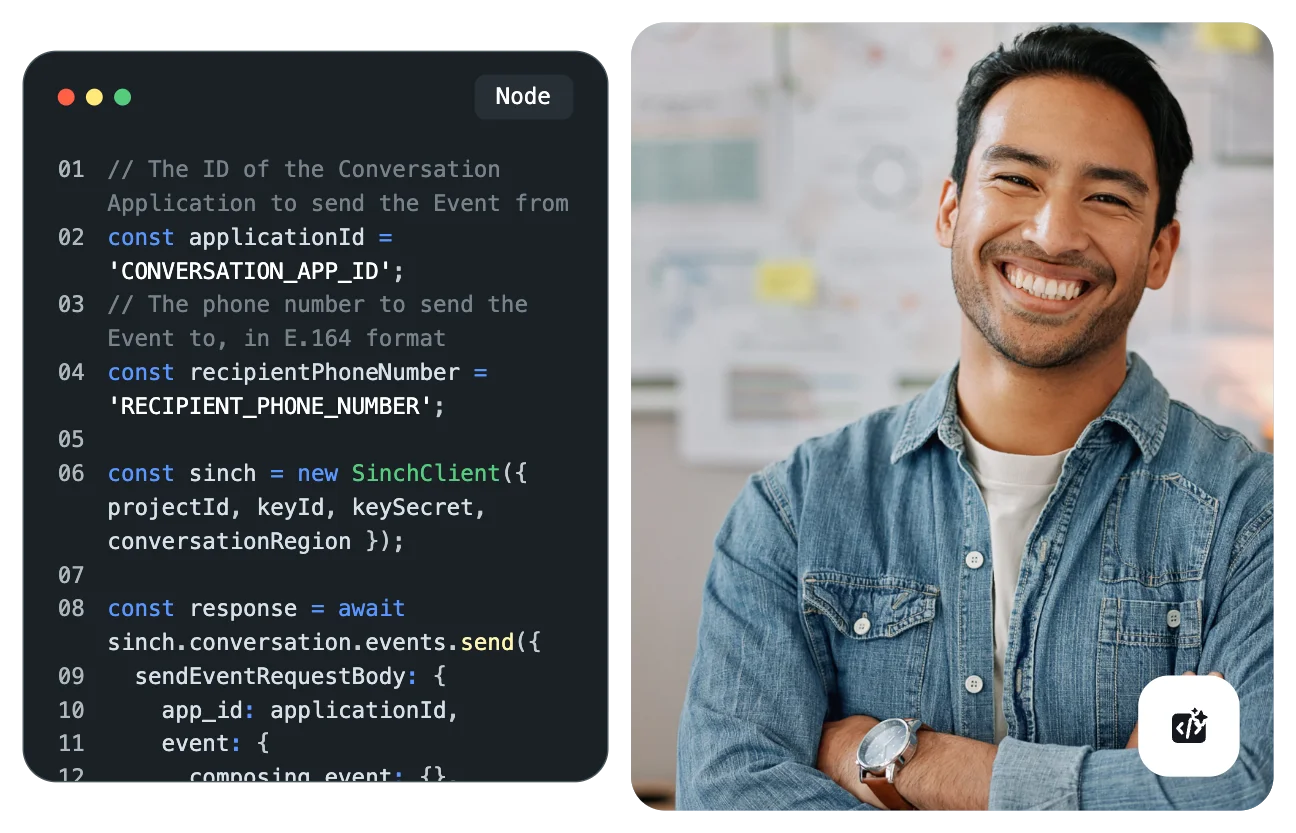
Image for Sinch plugins and integrations for your editor and AI agent

Editor extensions

Sinch Coding Assistant for VS Code, JetBrains, and Open VSX

Sinch Coding Assistant brings Conversation API, Number Validation, and Mailgun email validation into the IDE you already use. Install it from your editor’s marketplace, connect your credentials, and start building without wrappers or custom setup.

Cursor

Cursor integration: One install, three components

Cursor is the exception in this set. Its listing doesn’t install the editor extension – it installs Sinch Skills, a set of commands, and the Sinch MCP Server together, so Cursor’s agent gets tool access, shortcuts, and expert context from the same step.

  • Sinch Skills: Covers Messaging, Voice, Email, Numbers, Verification, and 10DLC

  • Commands: Shortcuts for sending messages, listing senders, and managing webhooks

  • Sinch MCP Server: A direct connection to live Sinch APIs, with nothing to wire together

Image for Cursor integration: One install, three components

Terminal agents

Claude Code and Gemini CLI connect through Sinch MCP

Claude Code and Gemini CLI connect through the Sinch MCP Server, so your agent works against the live APIs rather than a copy of the documentation. Both install from the sinch-plugins repository.

  • Claude Code plugin: Sends messages and manages webhooks from your terminal

  • Gemini CLI extension: Handles messaging and webhook management from the command line

  • Both run on the same MCP connection, so the tools behave the same way in either

Image for Claude Code and Gemini CLI connect through Sinch MCP

Extension capabilities

What you can do without leaving your editor

The extension puts a working set of Conversation API actions in your IDE. Anything you would normally open the dashboard for, you can do from the editor instead.

  • Send SMS and rich RCS messages, then track status and recent history

  • Create, edit, delete, and test webhooks, including simulated trigger events

  • Browse and add senders, and switch App ID or region for multi-environment testing

  • Validate phone numbers with Number Validation, and email addresses with Mailgun

  • Generate code snippets and get autocompletion for Sinch API methods

  • Turn on Simulator Mode to test messaging and webhooks without setting up an account

Image for What you can do without leaving your editor

Setup

Install the plugin, connect, and send

Install the extension for your editor, or point your agent at the Sinch MCP Server. Connect your credentials once, then ask your agent to send its first message.


                                # In Cursor, one command installs the Skills, commands, and MCP server together    
    /add-plugin sinch-cursor-plugin    
         
    # Or point any MCP-compatible tool at the Sinch MCP Server directly    
    npx -y @sinch/mcp  


Plugins and the rest of Agent Tools

Where plugins fit in Sinch Agent Tools

Plugins and integrations are one of six Agent Tools components, and they are how the other five reach the tools you work in. The extensions put Sinch tools in your IDE, and the terminal plugins connect your agent to MCP. Skills, the SDKs, the CLI, and Functions are the components behind them. Each works on its own, and they work better together.

Frequently asked questions about Sinch plugins and integrations

Quick answers on where to install, what it costs, and how an extension differs from the Sinch MCP Server.

The VS Code, JetBrains, Open VSX, and Cursor marketplaces, plus the sinch-plugins GitHub repository for Claude Code and Gemini CLI.

The plugins are free. Live API calls need a Sinch account, which takes a few minutes to set up.

VS Code, the JetBrains IDEs, Cursor, and Open VSX editors including VSCodium, Windsurf, and Antigravity. Claude Code and Gemini CLI connect through the Sinch MCP Server.

The extension puts Sinch tools inside your editor’s interface. The Sinch MCP Server is the connection that lets an AI agent reach the same APIs. Cursor’s listing installs neither an extension nor the server alone – it bundles Skills, commands, and the MCP server together.

Only to make live API calls. You can install a plugin and explore the tools first.

They’re one component of Sinch Agent Tools, the developer layer for building on Sinch APIs. Agent Tools sits inside a broader set of AI capabilities spanning Messaging, Voice, Email, and Verification.