Resources
Android and iOS SMS spam filtering: How it works and how to stay out of the junk folder
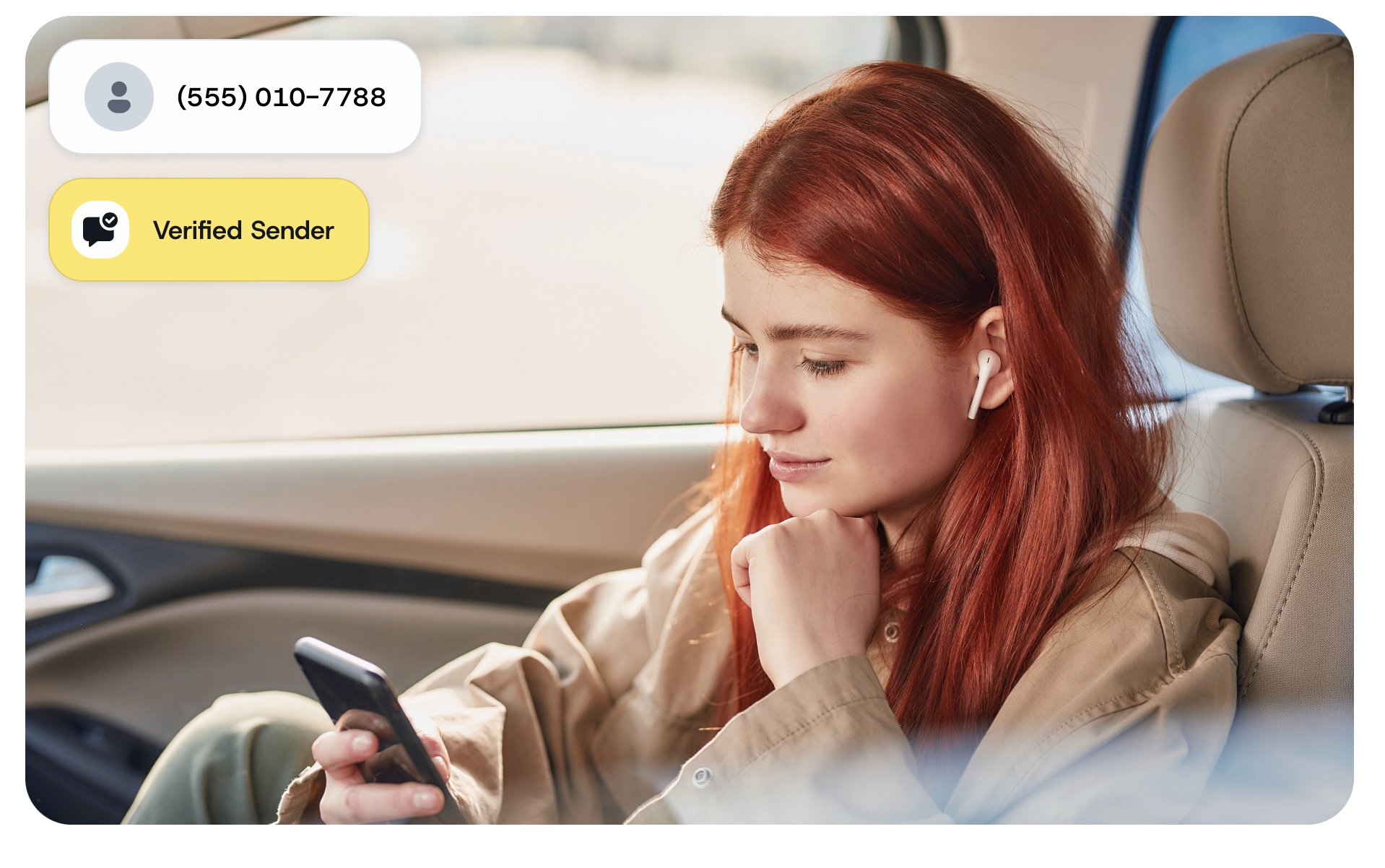
Your delivery report says the text was delivered. Your customer says they never got it. Usually, you’re both right: the message reached the phone, and the phone filed it somewhere other than the main inbox.
Both Android and iPhone now sort business texts on the device itself, and since July 1, 2026, Australian phones also flag branded texts from unregistered sender IDs as “Unverified.”
This guide explains what each platform’s filter does, what pushes a legitimate business message into a spam or unknown-sender folder, and the habits that keep yours in front of the people who asked for them. If you’re troubleshooting a specific complaint, skip to the checklist near the end.
Here’s the short version of how each platform treats business texts:
- Android (Google Messages) runs spam protection by default and can move suspected spam to a separate folder or block it outright.
- iPhone (iOS 26 and later) filters spam by default and can hide every unknown sender in a separate list with no notification.
- Neither filter is something you can pay to bypass. Registered sender IDs, consent, clean links, and recognisable content are what keep you in the main inbox.
How Android filters SMS spam
On most Android phones, the filter that matters is Google Messages, the default texting app on Pixel and many other devices. Its spam protection is switched on automatically, and users can turn it off in Messages settings under Protection and safety, according to Google.
Google describes two checks. Machine-learning models on the phone look for known spam patterns in the message text, and any URL in the message is sent to Google to confirm it isn’t malicious. Because of that second check, the link in a business text needs as much care as the wording.
When Google Messages suspects spam, it can do one of three things:
- Show a “suspected spam” warning inside the conversation.
- Move the message to the Spam and blocked folder, with no notification.
- Stop the message from being delivered at all. Google also says senders can be suspended when they breach its terms of service.
Recipients feed the system too. Tapping “Report spam” sends a signal to Google and the mobile operator, and “Report not spam” sends the opposite. A batch of spam reports from people who’ve forgotten they subscribed can shape how the filter treats your next send to everyone else.
A few things about this filter catch businesses out:
- Google runs it, not the networks or your provider. No SMS provider, Sinch Engage included, can switch it off for you. Google doesn’t publish the exact rules either.
- Delivered doesn’t mean seen. A delivered status means the handset received the message. It can still be sitting in Spam and blocked.
- Alphanumeric sender IDs aren’t exempt. A branded name can be filtered just like a phone number, and changing its capitalisation won’t get it out.
- Transactional messages get caught too. Booking confirmations and verification codes can be hidden if they share patterns with spam.
Samsung phones ship with Samsung Messages by default, which has its own spam and block settings separate from Google’s. The same habits keep you clear of both, but if a complaint comes from a Samsung user, ask which messaging app they use before you troubleshoot.
How iPhone filters texts from businesses
From iOS 26, the iPhone Messages app has three settings that affect business texts. Each one handles your message differently:
| Filter | On by default? | What happens to your message | How the customer gets it back |
|---|---|---|---|
| Filter Spam | Yes | Moves to the Spam folder. No notification. Links and replies are disabled until it’s moved out. | Spam > tap the message > Not Spam > Move to Inbox |
| Screen Unknown Senders | No (but on automatically for anyone who had Filter Unknown Senders on in iOS 18) | Moves to the Unknown Senders list. A badge shows a count, but there’s no alert in most cases. | Unknown Senders > tap the conversation > Mark as Known |
| Text Message Filter | No | Sorts unknown senders into Transactions and Promotions, or into categories set by a third-party filter app. | Change the filter setting or uninstall the filter app |
Sources: Apple Support on unknown senders and spam.
Apple defines an unknown sender as anyone the person hasn’t interacted with in Messages, or who isn’t in their contacts. That covers most first messages from a business.
A few details from Apple’s documentation matter for senders in Australia:
- Time-sensitive messages still notify. Verification codes, alerts, and urgent requests send notifications by default, even with screening on.
- Australia doesn’t get the category controls. The option to pick which unknown-sender categories (Time Sensitive, Personal, Transactions, Promotions) can notify is limited to the United States, Brazil, and India. Elsewhere, unknown senders notify by default.
- Three replies make you known. Filtering doesn’t apply to any sender the person has replied to three or more times. A single reply doesn’t move the conversation into the main list.
That third point favours two-way conversations from a dedicated number. An alphanumeric sender ID can’t receive replies, so a customer can never build up three replies with it.
We’ve covered the iOS 26 changes in more depth in what Apple’s Unknown Senders filter means for your SMS strategy.
Why legitimate business texts get filtered
Filters judge your message by comparing it with the scams they’ve seen and with how recipients react to you. Most false positives come from one of these:
| Trigger | Why it looks like spam | Platform it hits hardest |
|---|---|---|
| Public link shorteners (bit.ly, tinyurl, and similar) | Scammers use them to hide the real destination. Google checks every URL in a message. | Android |
| Unregistered sender ID | Since July 1, 2026, Australian networks replace the name with “Unverified” and group it with suspected scams. | Both |
| Scam-shaped wording | “Your parcel is on hold,” “account suspended,” “verify now” plus a link is the template most scams follow. | Both |
| No business name in the message | The customer can’t tell who you are, so they report it. Reports train the filter. | Both |
| Texting people who didn’t opt in, or opted in long ago | People report texts they don’t remember asking for. | Android (reports feed the model) |
| Sudden volume spikes from a new number | Fresh numbers sending at scale match the pattern of a spam run. | Android and carrier filtering |
| ALL CAPS, repeated punctuation, or heavy emoji | These match high-pressure promotional spam. | Both |
| A first message that’s purely promotional | The person has no history with you, so on iPhone it lands in Unknown Senders with nothing to make them open it. | iPhone |
One of these on its own rarely sinks a message. A text with a bit.ly link, no business name, and “verify now” in it has three, and that’s the pattern both filters are built to catch.
Best practices to stay out of spam on Android and iPhone
These apply to both platforms. Work through them in order, because the first two fix the most common problems.
1. Register your sender ID
If you send under a brand name, register it. An unregistered sender ID now shows as “Unverified” on Australian phones, sitting in the same thread as scam texts, no matter how clean your message is. Registration runs through your provider, and Sinch Engage is on ACMA’s approved list. Our guide on how to register your SMS sender ID with ACMA walks through it.
2. Only text people who asked
The Spam Act requires consent for marketing texts, and consent also cuts down the spam reports that train Google’s filter. If someone opted in more than a year ago and hasn’t heard from you since, a short re-confirmation through email is safer than a surprise text. SMS marketing laws in Australia covers what valid consent looks like.
3. Put your business name first
Start the message with the name the customer knows you by. On iPhone, it’s the only thing that tells someone scrolling Unknown Senders that this one is worth opening. It also helps you meet the Spam Act identification rule.
4. Use full, branded links
Skip public shorteners. Use your own domain, or a branded short domain you control, so the link the customer sees matches the business in the sender field. Test every link before a send, because Google checks it on arrival.
5. Avoid scammy copy and write like a person
Avoid urgency phrases that scammers rely on, such as “act now,” “final notice,” or “verify your account,” especially next to a link. Keep capitals for names, use one exclamation mark at most, and say plainly what the message is about.
6. Make your first message count
Send a welcome text as soon as someone opts in, while they still remember signing up. Confirm what they signed up for, how often you’ll text, and how to opt out. Ask them to save your number, or on iPhone to tap Mark as Known if your message lands in Unknown Senders.
7. Invite replies where you can
On iPhone, filtering stops once someone has replied to you three times. Two-way texting from a dedicated number gives customers a reason to reply, whether that’s confirming a booking with Y or asking a question. An alphanumeric sender ID is one-way, so keep it for notifications where the brand name matters most.
8. Ramp up volume gradually
If you’re moving to a new number or sending to a much bigger list than usual, start with smaller batches over a few days instead of one blast. Watch opt-out and delivery rates between batches.
9. Honour every opt-out fast
Include “Reply STOP” on every commercial message and action it within five working days, as the Spam Act requires. Someone who can’t opt out easily reports you instead.
10. Mind the time zone
A 9am send from Sydney lands at 7am in Perth. A text that wakes someone up reads as a nuisance, and nuisances get reported, so schedule to the recipient’s local time. Our guide to SMS marketing in Australia has more on timing and frequency.
11. Separate critical messages and give them a backup
Send verification codes and urgent notifications from a different sender than your promotions. If a promotional campaign draws spam reports, your booking confirmations aren’t caught up in it. Don’t swap senders to get around a filter, though. It doesn’t fix the cause, and it can look like the spam you’re trying to avoid.
For messages a customer must see, plan a second route. That might be email, a push notification from your app, or RCS or WhatsApp through a provider such as Sinch Engage. RCS business messages show a verified business name and logo, so the customer can see who’s texting before they open it.
What’s different in Australia
Apple and Google filters work the same way worldwide. Australia adds a check on top of them, applied by the networks before the phone’s filter sees your message.
Since July 1, 2026, the ACMA’s SMS Sender ID Register has required branded sender IDs to be registered. An unregistered one doesn’t show your name. It shows “Unverified,” and the message joins a single thread with other unverified and suspected scam texts. To the customer, your appointment reminder now sits next to fake parcel notices.
So if your texts seem to be going to spam in Australia, check one thing first: Is your sender ID registered with every provider you send through? If it isn’t, rewording the message won’t help.
Two Spam Act rules also shape what the filters see:
- The Spam Act governs consent, not the device. Commercial messages need consent, sender identification, and a working opt-out. Getting those right reduces spam reports, which is what the Android filter learns from. Read SMS marketing laws in Australia for the full rules.
- Factual messages still need identification. A booking reminder or delivery update doesn’t need an opt-out, but it does need to say who it’s from. On a filtered iPhone, that name is often the only reason someone opens it.
If you’re setting up from scratch, start with SMS marketing in Australia, then register your sender ID with ACMA before your first branded send.
This is general information, not legal advice. Check with your own compliance or legal advisers for your situation.
Troubleshooting checklist: “My customers aren’t seeing my texts”
Work through these in order. Each one rules out a cause before you move to the next.
- Check the delivery report in your SMS platform. If the status isn’t delivered, this is a delivery issue, not a filtering one. Look at the error code before anything else.
- Check the sender ID registration. If the business sends under a brand name, confirm it’s registered with ACMA through every provider they use. If it isn’t, that’s almost certainly the cause in Australia.
- Ask which phone and messaging app the recipient uses. iPhone, Google Messages, and Samsung Messages each keep filtered texts in a different place.
- Ask the recipient to check the filtered folders.
- iPhone: Messages > Filters > Unknown Senders, then Spam.
- Google Messages: tap the profile picture, then Spam and blocked.
- Samsung Messages: Settings > Block numbers and spam (wording varies by model).
- Have them move the message back. On iPhone, tap Mark as Known or Not Spam. On Android, open the conversation and tap Report not spam. Saving the number as a contact also helps.
- Review the message content. Look for a public link shortener, a missing business name, scam-style wording, or a promotional first message. Compare with the trigger table above.
- Review the audience. When did these contacts opt in? Was the list imported or bought? A spike in opt-outs or complaints after a send points to a consent problem.
- Check the sending pattern. Was this a new number, or a much larger send than usual? If so, recommend smaller batches for the next few sends.
- Test on your own devices. Send the same message to a test iPhone and Android phone that have never received from this sender. If it filters for you, the content or sender is the cause. If it doesn’t, the issue is likely specific to that recipient’s settings or report history.
Frequently asked questions
On iOS 26 and later, Filter Spam is on by default and uses on-device detection to move suspected junk into a Spam folder with no notification. Separately, if the customer has Screen Unknown Senders on, any sender they haven’t saved or interacted with goes to an Unknown Senders list. Registered sender IDs, clear business names, and two-way conversations help with both.
Google Messages runs spam protection by default. It checks message text against known spam patterns on the device, checks every link with Google, and learns from what recipients report. Public link shorteners, scam-style wording, and texting people who don’t remember opting in are the most common causes.
No. Neither offers paid allowlisting for SMS. What you control is your sender ID registration, your consent practices, and your message content.
No, but it removes the “Unverified” label in Australia, which is the most visible problem. Device filters still assess the message itself.
Yes. The message reached the phone, so your delivery report shows it as delivered. The customer just has to open the folder to see it.
On iPhone, filtering stops for senders a person has replied to three or more times, according to Apple. One reply on its own isn’t enough. That only works from a number that accepts replies, not an alphanumeric sender ID.
On iPhone, time-sensitive messages such as verification codes still send notifications by default, even with unknown-sender screening on. Keep them short and free of promotional content so they stay classed that way.
No. Google and Apple control their own filters, and no SMS provider or mobile network can override them. What a good provider can help with is everything the filters look at: a registered sender ID, consent and opt-out handling, and content that doesn’t look like a scam.
Sources
- Google Messages Help: How Google protects your privacy with spam detection
- Apple Support (AU): View conversations from unknown senders in Messages
- Apple Support: View and recover spam messages on your iPhone
- Sinch: How to register your SMS sender ID with ACMA
Keep your texts where customers can see them
Apple added a default spam folder and unknown-sender screening in iOS 26, and Australia switched on the Sender ID Register in July 2026. Both changes reward the same things: a registered name, a list of people who asked to hear from you, and messages that read like they came from a person.
Sinch Engage, formerly MessageMedia, is an ACMA-approved provider, so you can register your sender ID in the same platform you send from. Try Sinch Engage for free or talk to one of our experts.
Author: