Send shift reminders with SMS to reduce no-shows

Tired of dealing with no-shows? Try sending an SMS shift reminder, a text message that gets sent before a scheduled work shift. It confirms the date, time, and location — helping cut down on no-shows and late arrivals.

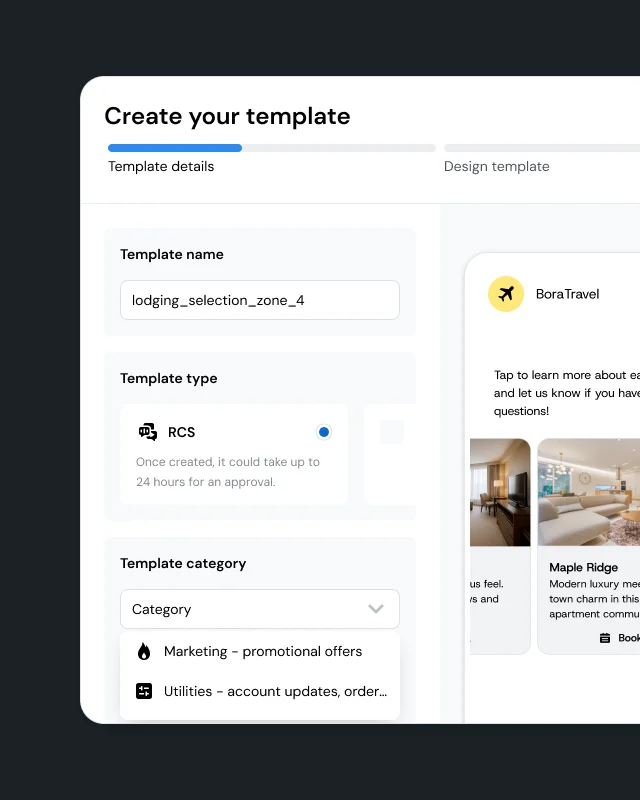
With Sinch Engage, you can send shift reminders via SMS now or schedule them for later. You can also set messages to recur at set intervals. Personalize messages with merge fields or templates, and stagger sends when you need to manage reply volume.


Image for Send shift reminders with SMS to reduce no-shows
Image for Why businesses send shift reminders with SMS

BUSINESS OUTCOMES

Why businesses send shift reminders with SMS

Scheduling messages helps you organize communications more efficiently. It also helps messages reach recipients when you choose, while recurring schedules save time and support consistent communication.

Send messages at the right time

Schedule messages for a specific time and date, so your reminders go out when you choose.

Save time with recurring schedules

Set a campaign to repeat automatically. Choose Daily, Weekly, Every Two Weeks, Monthly, or Annually.

Personalize reminders at scale

Use merge fields or templates to tailor each message. This keeps reminders consistent while adding recipient details.

Manage large sends more easily

Stagger sends over a nominated number of hours. Messages send evenly across that period.
Image for Who uses shift reminders via SMS

THE SCENARIO

Who uses shift reminders via SMS

Shift-based industries rely on employees working scheduled rotations, like in healthcare, retail, hospitality, manufacturing, logistics, and transportation.

Shift reminders help when you need to confirm upcoming shift details. They’re useful when you want a simple message that reaches an employee on their phone.

Image for How to send shift reminders via SMS

THE WORKFLOW

How to send shift reminders via SMS

In Sinch Engage, create a new message and select the Sender ID. Choose recipients and write your message. Name the campaign and select a send period.

To schedule for later, select Schedule for later and choose date, time, and time zone. To send recurring reminders, select Schedule message to repeat. Choose a frequency and a termination date.

If you send Batch SMS in NetSuite, recipients come from a Saved Search. Each recurrence uses the saved search results at the scheduled time. Scheduled Batch SMS uses the time zone in the user’s NetSuite profile.

Image for What makes shift reminders work well

BEST PRACTICES

What makes shift reminders work well

Keep the message short and clear. Include the shift date, start time, end time, and location.

If you send to a large volume of recipients, consider staggering the send. This helps you manage replies via the inbox. It can also help if you forward replies to a mobile.

SHIFT REMINDER WORKFLOWS

How teams use SMS shift reminders

One-time shift reminders

Schedule a reminder for a specific date and time. Use this when you need a one-off reminder.

Recurring reminder campaigns

Set the message to repeat at a set interval, and choose a termination date for the message cycle.

Staggered sends for large lists

Send messages over a period of time. Set the hours, and messages send evenly across that window.

Update scheduled reminders

Pause and edit a scheduled message when details change. Save and resume without starting a new message cycle.

WHAT’S INCLUDED

Capabilities that power SMS shift reminders

  • Schedule messages for a specific date and time

  • Schedule messages to repeat at set intervals

  • Set a termination date for recurrence

  • Stagger sends over a nominated number of hours

  • Personalize messages with merge fields or templates

  • Pause, edit, and resume scheduled messages

GETTING STARTED

Start sending shift reminders in four steps

You can set up scheduled and recurring messages in Sinch Engage. The steps below follow the standard scheduling workflow.

Navigate to Messaging > New message. Select the Sender ID you want to use.

Choose your recipients and write your message. Add merge fields or apply a template if needed.

Select Schedule for later to send at a chosen date and time. Use Message Recurrence to repeat the message. Choose a send period to stagger delivery.

Go to SMS Messaging > Scheduled to view scheduled campaigns. Use Pause and Edit to update content or timing. Then choose Save and Resume or Save and Pause.

FAQ

Frequently asked questions about SMS shift reminders

An SMS shift reminder is a text message sent to an employee ahead of a scheduled work shift. It confirms the date, time, and location. It can help reduce no-shows and late arrivals.

To send shift reminders via SMS, create a new message, choose recipients, and write your message. Then choose Send Now or Schedule for later. You can also set the message to recur at set intervals.

Shift-based industries are sectors that depend on employees working scheduled rotations. Common examples include healthcare, retail, hospitality, manufacturing, logistics, and transportation.