Resources
A complete guide to HubSpot SMS automation
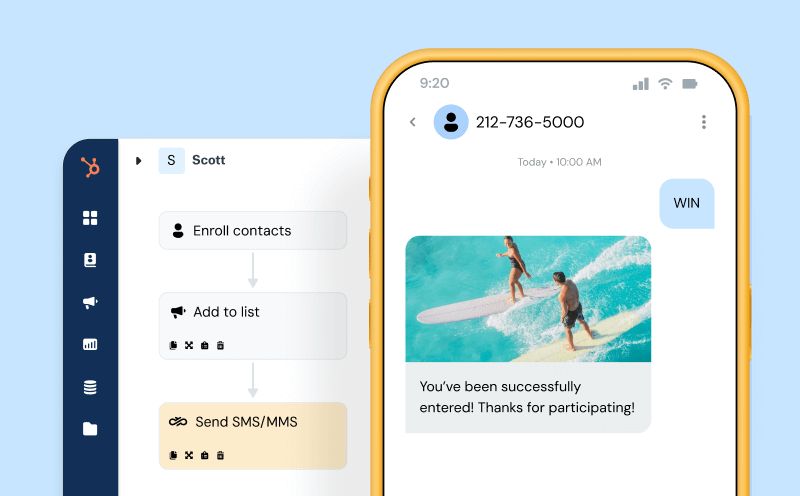
Texting is one of the most direct and underutilized ways to connect with your leads and customers. With SMS automation in HubSpot, you can trigger texts to send automatically to keep conversations moving, based on CRM data – and it’s actually easier than you think.
That’s right: instead of manually sending follow-ups or relying on low-response emails, you can build automated SMS workflows that capture leads, nurture prospects, and close sales – fully synced with your HubSpot CRM and marketing campaigns.
In this guide, you’ll learn all the basics of how to set up SMS automation in HubSpot, popular uses cases and examples, and top best practices for building SMS automation workflows in the leading integration made for getting ROI with automated texts in HubSpot.
The basics of HubSpot SMS automation
What it is
HubSpot SMS automation lets your CRM send text messages automatically, triggered by customer actions or data updates. No manual typing required.
With it, you can:
- Send follow-ups when a prospect downloads a lead magnet
- Deliver personalized anniversary or birthday text messages
- Reengage inactive contacts with timely offers
- Nurture leads through the funnel without lifting a finger
How it works
The engine behind it all is HubSpot workflows. You define:
- Triggers: when a form is submitted, a contact property changes, or someone joins a list.
- Actions: what happens next (send SMS, update property, notify a rep).
HubSpot continuously monitors your CRM and automatically executes your SMS workflows whenever those conditions are met.
Compliance you need to know
SMS marketing is tightly regulated, and every automated message must follow strict SMS regulations:
- Explicit opt-in is required. You can’t text someone just because they provided a phone number.
- Clear opt-out instructions must be included in every message (e.g., “Reply STOP to unsubscribe”).
- The Telephone Consumer Protection Act (TCPA) treats unsolicited texts like robocalls—violations can reach $1,500 per message.
Always include a fail-safe
As with any automation you implement in your business, it’s best practice to anticipate when things go wrong. For automated SMS in HubSpot, you should:
- Set fallback logic if a message fails to deliver.
- Automatically unenroll contacts who reply “STOP.”
- Notify your team of delivery errors or compliance issues.
This ensures smooth, respectful communication and protects your brand reputation.
Why SMS automation should be part of your HubSpot strategy
In a recent consumer study, 74% of respondents check their text notifications within 5 minutes of receiving them. They check email…eventually.
Email of course matters, but SMS automation multiplies your results. When your nurture email gets buried under dozens of promotions, a well-timed text can cut through the noise. Together, they’re a coordinated multichannel strategy that feels timely and personal, and the impact is hard to ignore: 42% of consumers have made a purchase as a direct result of a brand text in the past year.
Here’s a great specific example.
Vinomofo, an online wine retailer, wanted to engage customers more directly from HubSpot without relying solely on email. Using Sinch Engage’s SMS for HubSpot integration, their marketing team built automated text campaigns to re-engage leads, drive repeat purchases, and send time-sensitive offers.

“The SMS for HubSpot integration has been a fantastic addition to our marketing arsenal with 120x ROI and 21% conversions!”
How to set up SMS automation in HubSpot
Setting up SMS automation requires three core components working together: an SMS integration, properly configured workflows, and thorough testing before launch.
Most teams rush through setup and end up with broken automations or compliance issues. Here’s how to do it right.
Step 1 – Connect an SMS Integration
HubSpot has some native SMS functionality, but it’s limited. To get the most out of SMS automation – especially for high-volume sending, international campaigns, and attached media (like with MMS or RCS) – you’ll need a third-party integration.
For our purposes, we’ll show you how to get set up with Sinch Engage. You can quickly connect with our SMS integration in one of three ways:
- From Sinch Engage’s HubSpot integration page
- Directly from our hub (If you already have an account with Sinch Engage)
This doc provides a step-by-step guide for each of these methods.
Choosing a HubSpot SMS provider
When evaluating SMS providers you’ll want to look for these essential features:
- Workflow integration: Seamless triggers from HubSpot workflows
- Contact property sync: Ability to update HubSpot contact records based on SMS responses
- Delivery tracking: Real-time delivery and engagement data flowing back to HubSpot
- Compliance management: Automatic opt-out handling and consent tracking
- Multi-channel support: SMS, MMS, and emerging channels like RCS and WhatsApp
Sinch Engage (a certified HubSpot Essential App) stands out as a leading HubSpot SMS integration that covers all of these must-have features and more.
Why Sinch Engage’s HubSpot integration is a leading solution
In addition to the mobile messaging channels listed above (SMS, MMS, WhatsApp, RCS), Sinch Engage’s HubSpot integration is continuing to innovate fast: it already includes AI-powered message optimization and advanced deliverability features that ensure your messages reach customers when they need them the most.
The setup process typically takes less than 30 minutes:
- Connect your Sinch Engage account to HubSpot.
- Verify your phone number for sending, and sync your contact properties.
- From there, the integration automatically maps standard HubSpot fields (first name, company, deal stage) to your SMS templates for personalization.
Step 2 – Build your SMS automation workflow in HubSpot
Once your SMS platform is connected, creating automated text workflows in HubSpot works just like building email workflows: you’ll define triggers, set conditions, and create personalized message sequences.
Create a new workflow
- Go to Automation → Workflows in HubSpot.
- Choose Create workflow, then select Contact-based.
Set your enrollment triggers
HubSpot allows you to trigger SMS messages based on:
- Form submissions
- Property changes
- List enrollments
- Lifecycle stage transitions
The most effective triggers are tied to customer intent, such as when a contact downloads your pricing guide, requests a demo, or abandons a shopping cart.
Personalize your messages
The real power of SMS automation comes from using your existing HubSpot data to make every message feel one-to-one.
Instead of a generic “Thanks for your interest”, send something like:
“Hi [First Name], saw you downloaded our [Content Title] guide. As a [Industry] [Job Title], you’ll probably find the section on [Relevant Topic] especially useful. Quick question – what’s your biggest challenge with [Pain Point]?”
Or try:
“Hi [First Name], thanks for downloading our ROI calculator. Based on [Company Name]’s size, here are three ways to implement it: [LINK]”
These small touches instantly make your texts feel more personal and relevant.
Add logic and timing
Use conditional branches to tailor your workflow for different segments — for example:
- Send detailed technical content to enterprise leads.
- Share simple value propositions with SMB prospects.
Finally, set delays between messages to create natural follow-up sequences based on each contact’s actions and engagement.
Step 3 – Test and launch
It’s solid practice to make sure you thoroughly test your SMS automation before letting it run, especially when you’re contacting a large audience list. Here’s how you can text your automated SMS in HubSpot:
1. Test your workflow end-to-end
- Create test contacts with varying property values.
- Run them through the entire workflow to verify:
- Personalization tokens display correctly.
- Delays and conditions trigger as expected.
- Opt-out links or replies function properly.
2. Send test messages across devices
Test your SMS on multiple phone numbers and different device types. Message delivery can vary between carriers, especially for long texts or messages with links.
3. Launch and monitor performance
Once everything checks out, go live – but keep a close eye on performance metrics like:
- Delivery rate
- Response rate
- Opt-out percentage
You can find all of these SMS analytics in the Sinch Engage HubSpot integration as well, allowing you to monitor SMS performance right from HubSpot.
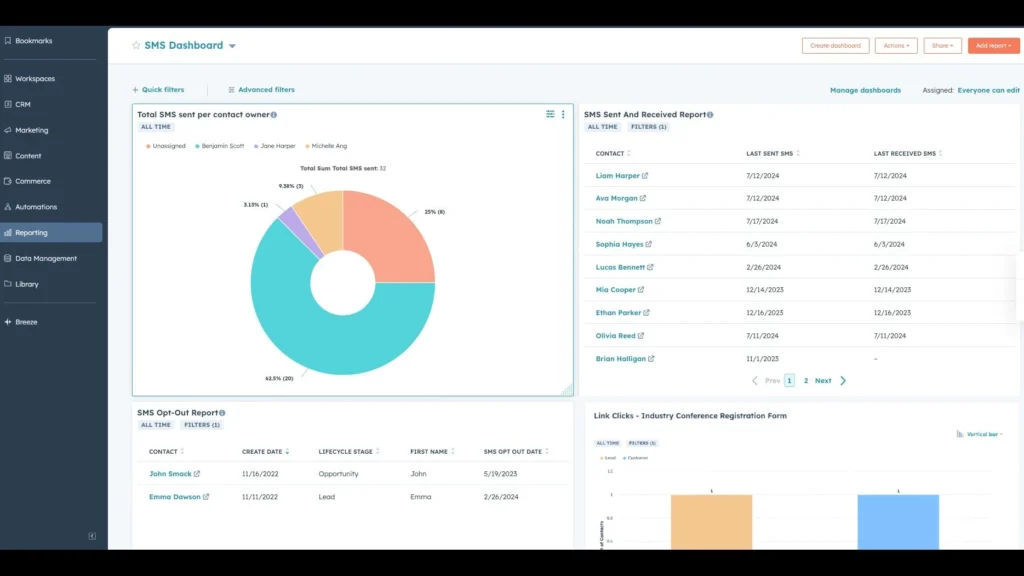
And in terms of what to look out for while you test: If more than 5% of recipients unsubscribe or reply “STOP,” it’s a red flag. You may be:
- Sending messages too frequently, or
- Targeting the wrong segment.
Use these insights to adjust your frequency, content, or targeting before scaling to your full contact list.
4 ways to use SMS automation in HubSpot
The real power of SMS automation kicks in when you start connecting customer actions to smart, timely responses. Every click, reply, or ignored message is a signal – and HubSpot can use those signals to trigger the perfect follow-up automatically.
For example, if someone clicks your pricing link but doesn’t book a demo, that’s interest mixed with hesitation. Your workflow can detect that action and send a follow-up text with a case study or testimonial that tackles common pricing objections.
Or if a prospect goes silent after your first message, automation can pivot – sending a softer touchpoint or a different type of content to re-engage them.
Here are four common ways to use SMS automation in HubSpot, all possible (and easy to do) with Sinch Engage.
1. Trigger actions using SMS or MMS replies
When someone replies to your SMS campaigns, those responses can trigger new workflows and actions in HubSpot.
For example, when your customers reply “YES” to a demo invitation and they’re automatically enrolled in pre-meeting nurture sequences. Or when they send “PRICING,” they receive detailed pricing information while your sales rep gets notified.
These automated responses eliminate the delays that kill momentum in sales conversations.
2. Trigger actions and workflows using inbound WhatsApp replies
Inbound WhatsApp replies can trigger HubSpot workflows, allowing you to build conversation flows that feel personal yet scale automatically.
When prospects engage through WhatsApp, you can instantly update contact properties, assign leads to sales reps, or launch follow-up sequences based on their specific responses.
3. Trigger workflows when a contact clicks a link from your SMS message
Link clicks from SMS messages create powerful automation opportunities.
When prospects click links in your text messages, you can trigger immediate follow-up sequences like scheduling sales calls, sending additional resources, or updating lead scores based on engagement level.

This lets you identify hot prospects automatically and prioritize follow-up accordingly.
4. Trigger deal stages from an inbound SMS message
Your sales team also benefits from deal-stage automation. Inbound SMS messages can automatically move deals through your pipeline.
When a prospect meets a criteria filter, the automation moves the deal to the next stage. So, instead of waiting for your team to manually update records, the system handles routine actions while escalating essential conversations to the right people.
How Sinch Engage makes HubSpot SMS automation easy
If you’re using HubSpot but haven’t added SMS automation to your customer engagement strategy, what are you waiting for? Automated SMS is a powerful way to engage prospects through long, complex buying cycles – with the lightness, efficiency, and personalization that emails and calls can’t provide.
With Sinch Engage, you can skip the technical hurdles and build advanced SMS workflows directly inside HubSpot. No custom code or long setup required.
Ready to try SMS automation in HubSpot? Book a demo or try Sinch Engage for free.

Author: