Resources
How to send email to text in 3 simple steps (2026)
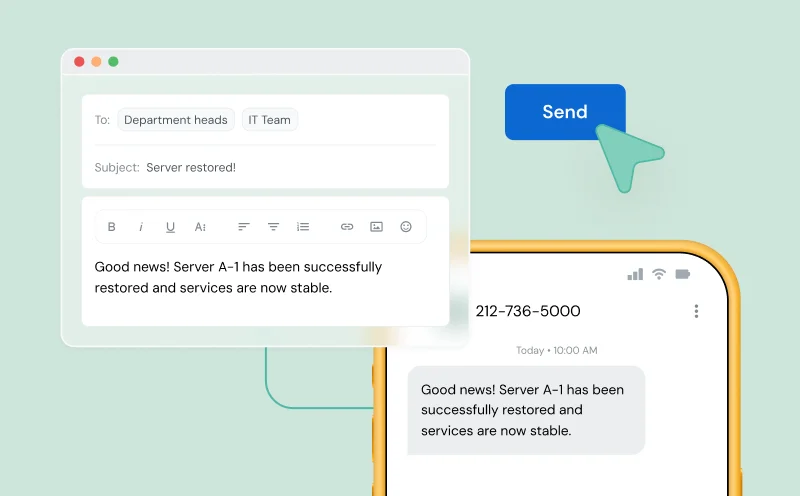
You sent the email an hour ago. No reply. You know a text message would get read in minutes, but your phone is across the room and you’re deep in a workflow on your computer. Here’s the good news: you can send a text message directly from Gmail, Outlook, Yahoo, or any email client you already have open — no app downloads, no special software, no developer skills required.
This guide walks you through the exact steps to send an email to a phone number as a text message, gives you the carrier gateway addresses you need for every major US and Canadian carrier, and explains clearly when this free method stops being enough for business use.
What is email to text?
Email to text is exactly what it sounds like: you send an email from your inbox and it arrives on someone’s phone as a standard SMS or MMS text message. No app. No phone in hand. Just your email client and a specially formatted address.
Here’s how it works under the hood. Your email travels from your inbox using the same SMTP protocol that powers every email you have ever sent. Instead of landing in another email inbox, the message hits a carrier gateway — a bridge operated by the recipient’s mobile carrier that converts your email into SMS format and delivers it to their phone’s text message inbox.
Email to SMS uses Simple Mail Transfer Protocol (SMTP) and either a carrier gateway or SMS API to convert emails into SMS format before delivering them to the recipient’s mobile number.
Think of the carrier gateway as a translator. Your email speaks one language (SMTP). The recipient’s phone speaks another (SMS). The gateway sits in the middle and handles the conversion so the message shows up as a plain text message on their device.
The address you send to isn’t a normal email address. It combines the recipient’s 10-digit phone number with the carrier’s SMS gateway domain. For example, if someone uses Verizon and their number is 5551234567, you would email 5551234567@vtext.com. That’s the entire trick — and it works with any email client you already use.
There are two kinds of gateway addresses for most carriers. SMS gateways deliver plain text messages with a 160-character limit. MMS gateways can handle longer messages and multimedia like images, but delivery is less predictable. For most quick business communications, SMS is the way to go.
Now that you understand the concept, let us walk through the actual steps.
How to send email to text in 3 simple steps
You don’t need to download any special extensions or additional apps to send an email to a phone number. Everything you need is already in your email client. The entire process takes about two minutes the first time and less than thirty seconds once you know the recipient’s carrier.
Step 1: Find the recipient’s mobile carrier
Before you can format the address, you need to know which mobile carrier the recipient uses. The carrier determines the gateway domain, and using the wrong one means your message disappears silently — no bounce notification, no error, just nothing.
You have a few options for identifying the carrier:
- Ask them directly. If you can reach the person by any other channel — Slack, email, in person — just ask. It takes five seconds and eliminates delivery risk entirely.
- Use a free carrier lookup tool. Several websites let you enter a phone number and return the carrier. Search for “carrier lookup” or “phone number carrier check.” These tools are accurate for numbers that haven’t been ported to a new carrier recently.
- Check your own records. If this is a customer or contact in your CRM, you may already have their carrier information on file.
The most reliable approach is the simplest one: ask. Carrier lookup tools can return outdated results if the person recently switched providers or ported their number, and there’s no way to know the result was wrong until your message fails to arrive.
Step 2: Format the email address with the carrier gateway
Once you know the carrier, open a new email in your client — Gmail, Outlook, Yahoo, Apple Mail, or anything else — and enter the recipient’s address in the “To” field using this format:
10-digit phone number + @ + carrier gateway domain
Combine the 10-digit phone number (no spaces, dashes, or parentheses) with the carrier’s SMS gateway domain. For example:
- T-Mobile: 5551234567@tmomail.net
- Verizon: 5551234567@vtext.com
- AT&T: 5551234567@txt.att.net
Don’t include the country code (1) before the number. Don’t add any formatting characters. Just the raw 10 digits followed by the @ symbol and the gateway domain. You’ll find the complete list of gateway addresses for every major carrier in the next section.
Step 3: Compose and send your message
Now write your message in the body of the email. Keep these rules in mind:
- Leave the subject line blank if possible. Some carrier gateways prepend the subject line to the message body, which eats into the 160-character limit and makes your text look strange. If your email client requires a subject, keep it extremely short.
- Write in plain text. No bold, no italics, no bullet points, no colored fonts. The carrier gateway strips formatting anyway, and rich text can cause garbled delivery.
- Stay under 160 characters. Standard SMS supports 160 characters for plain text. If you go over that, the message may be split into multiple texts, delivered out of order, or converted to MMS — which is less reliable.
- Remove your email signature. Your automatic signature will be included in the text message unless you delete it before sending. More on this in the tips section below.
Hit send. If you formatted the address correctly and identified the right carrier, the recipient will receive your message as a standard text within seconds. There’s no delivery confirmation on your end — the email will simply leave your outbox like any other message.
Carrier gateway addresses for email to text in the US and Canada
Below is a comprehensive table of SMS and MMS gateway addresses for major US and Canadian carriers. Bookmark this page — you’ll need it every time you send an email to text to a new contact.
US carriers:
| Carrier | SMS gateway | MMS gateway |
| AT&T | number@txt.att.net | number@mms.att.net |
| Verizon | number@vtext.com | number@vzwpix.com |
| T-Mobile | number@tmomail.net | number@tmomail.net |
| Sprint (now T-Mobile) | number@messaging.sprintpcs.com | number@pm.sprint.com |
| US Cellular | number@email.uscc.net | number@mms.uscc.net |
| Boost Mobile | number@sms.myboostmobile.com | number@myboostmobile.com |
| Cricket Wireless | number@sms.cricketwireless.net | number@mms.cricketwireless.net |
| Metro by T-Mobile | number@mymetropcs.com | number@mymetropcs.com |
| Google Fi | number@msg.fi.google.com | number@msg.fi.google.com |
| C-Spire | number@cspire1.com | — |
| Consumer Cellular | number@mailmymobile.net | — |
| Page Plus | number@vtext.com | number@vzwpix.com |
| Ting | number@message.ting.com | — |
| Mint Mobile | number@tmomail.net | number@tmomail.net |
| Visible | number@vtext.com | number@vzwpix.com |
Canadian carriers:
| Carrier | SMS gateway | MMS gateway |
| Bell Canada | number@txt.bell.ca | number@txt.bell.ca |
| Telus | number@msg.telus.com | number@msg.telus.com |
| Fido | number@fido.ca | number@fido.ca |
| Koodo | number@msg.koodomobile.com | number@msg.koodomobile.com |
| Virgin Mobile Canada | number@vmobile.ca | number@vmobile.ca |
A few additional notes on this table:
- MVNOs (smaller carriers) often use the parent network’s gateway. Mint Mobile uses T-Mobile’s gateway. Visible and Page Plus use Verizon’s. If you can’t find a carrier in this table, identify their parent network and try that gateway.
- Replace “number” with the full 10-digit phone number. No country code, no dashes, no spaces. Just digits.
Tips for sending email to text successfully
The steps above are straightforward, but the details matter. One wrong move and your message either arrives garbled, gets truncated, or vanishes entirely. Here’s how to avoid the most common mistakes.
Keep your message under 160 characters
Standard SMS supports 160 characters for plain text or 70 characters for Unicode (which includes emojis). That character count includes everything in the message body — your actual text, any subject line the gateway prepends, and any signature you forget to remove.
Treat email to text like a tweet from the early days of Twitter. Get to the point fast. If you need more space, use the MMS gateway instead — but know that MMS delivery is less consistent across carriers.
Avoid attachments and rich formatting
Attachments trigger conversion to MMS, which is less reliable than standard SMS. Images, PDFs, calendar invites, and even inline logos from your email template can cause problems. If you need to share a file, send a short URL in the text body instead.
Strip all formatting before sending. Switch your email client to plain text mode if possible. HTML formatting, colored fonts, and embedded images don’t translate to SMS and can result in garbled characters or failed delivery.
Remove your email signature
This is the mistake almost everyone makes the first time. Your email signature — name, title, phone number, company address, legal disclaimer, that inspirational quote — all of it gets included in the text message. On a 160-character SMS, your signature alone can consume the entire message.
Use the tags {end sms} or {end} at the end of your message if you’re using a service that supports them, like Sinch MessageMedia. These tags tell the system to strip everything after that point.
If you are using the free carrier gateway method, you need to manually delete your signature from each message before hitting send. In Gmail, look for the dashed line above your signature and delete everything below it. In Outlook, remove the signature block in the compose window.
Professional email-to-SMS services solve this problem at the account level with rules that automatically strip email signatures and disclaimers from outgoing messages — one less thing to remember every time you send.
Verify the carrier before sending
Silent delivery failures are a known issue with carrier gateways. If you use the wrong gateway domain, your email won’t bounce back with an error. It simply disappears. The recipient never sees it, and you have no way of knowing it failed.
Always test with your own phone number first when trying a new carrier gateway. Send yourself a message, confirm it arrives, and then send to your intended recipient. If you’re unsure of someone’s carrier, ask — a five-second question saves you from a message that never arrives.
One simple solution, many big benefits
Sending text messages via email is quick, easy, and cost-effective. Think of it like a short-cut. With the right authorizations in place, your team can bypass the SMS portal to get urgent messages out to customers using the email platform they know and love.
And, because it saves time and isn’t more expensive than sending SMS via the web portal, it can end up leaving your business better off.
Want to give it a try yourself? Explore our email-to-text capabilities and business text messaging platform today.

Author: