Resources
How to set up SMS reminders for Google Calendar and stop losing clients to no-shows
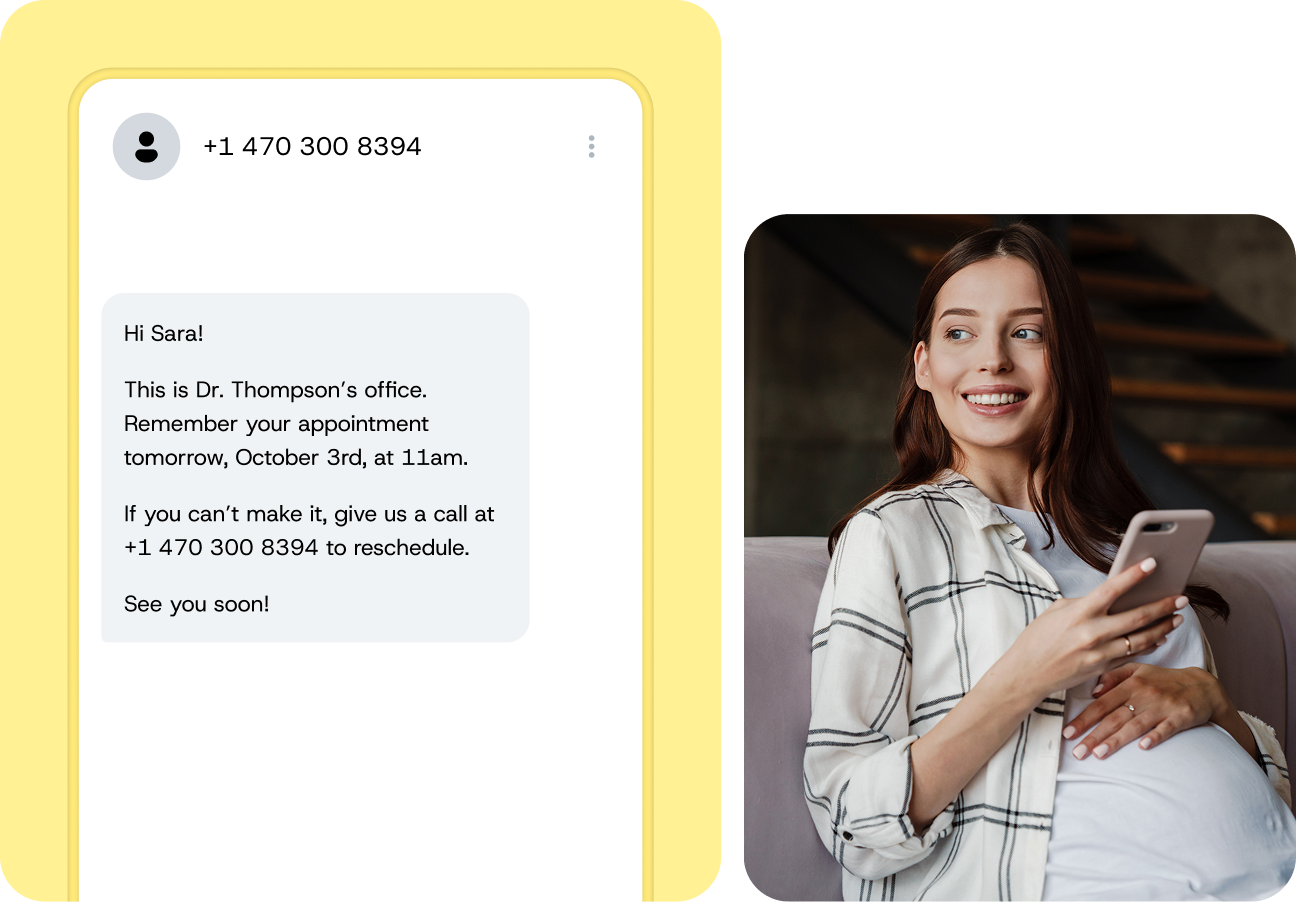
Every missed appointment costs you money. For a salon owner, it’s an empty chair and a stylist standing idle. For a therapist, it’s a billable hour that vanishes. If you rely on Google Calendar to manage your schedule, you’ve probably noticed the gap: there’s no built-in way to text your clients a reminder before their appointment.
Manual reminder calls eat up your afternoon, email reminders sit unread, and push notifications only work if your client has the Google Calendar app installed — which most don’t. The good news: connecting SMS reminders to Google Calendar is straightforward, affordable, and doesn’t require any coding.
Can Google Calendar send SMS text reminders?
No. Google Calendar supports email reminders, push notifications to the mobile app, and desktop browser alerts — but it can’t send text messages to your clients. This matters because your clients aren’t checking your calendar. A push notification lands on your device, not theirs. An email reminder competes with dozens of others in their inbox.
To send SMS appointment reminders from Google Calendar, you need a third-party tool that connects to your calendar, reads your event details, and triggers a text to your client at the right time.
Why SMS reminders outperform email and push notifications
Here’s why SMS reminders outperform other channels.
SMS has unmatched open rates
SMS messages have a far higher open rate than email — and people open them fast. Your reminder reaches your client almost instantly, in the channel they check most throughout the day. Your carefully written reminder email, by contrast, is buried under newsletters and spam before your client ever sees it.
No app required for recipients
Unlike push notifications, SMS doesn’t require your client to have a specific app, an email account, or even a smartphone. Every mobile phone can receive a text message — making it the most reliable way to reach any client, regardless of their device or tech comfort level.
Top SMS reminder tools for Google Calendar
SMS reminder solutions fall into three categories. Understanding the differences helps you pick the right fit.
Google Workspace add-ons
The simplest option. Install directly from the Google Workspace Marketplace, grant calendar access, and start sending reminders without leaving the Google ecosystem. Add-ons work well for solo practitioners and small teams who need a quick, no-code setup. The trade-off is limited customization — most add-ons cap the number of reminders, calendars, and users you can manage.
Standalone appointment reminder apps
Dedicated platforms like GReminders and Appointment Reminder offer more: two-way SMS confirmations, multi-calendar support, custom workflows, and sometimes HIPAA-compliant messaging for healthcare providers. These suit growing businesses that need more control over messaging and features like confirmation tracking.
SMS API platforms for custom integrations
When your business outgrows off-the-shelf tools — hundreds of reminders per month, multiple locations, or SMS embedded in existing booking software — an SMS API gives you full control. Build the integration to match your exact workflow and scale without per-seat pricing limitations.
How to set up SMS reminders for Google Calendar
Regardless of which tool you choose, the setup process follows the same five steps.
1. Choose your SMS reminder solution
Match the tool to your needs by asking yourself a few questions before you decide:
- How many appointments do I schedule per month?
- Do I need clients to confirm or cancel via text reply?
- Do I manage one calendar or multiple?
- Do I need HIPAA compliance?
A solo practitioner with 30 appointments per month can start with a Google Workspace add-on. A multi-location business with 500+ monthly appointments should consider a standalone app or API platform.
2. Connect your Google Calendar account
Every SMS reminder tool requires read access to your Google Calendar to pull event details — the appointment title, date, time, location, and attendee contact information. You’ll authorize this through Google’s standard OAuth flow. Always review a tool’s privacy policy before granting access.
3. Create your SMS message template
Write the actual text your clients will receive. Most tools support dynamic fields that automatically insert the client’s name, date, time, and location into each message. A sample template might look like this:
“Hi {first_name}, reminder: your appointment is on {date} at {time} at {location}. Reply YES to confirm or CALL to reschedule.”
Keep messages under 160 characters where possible — longer messages get split into multiple segments and can increase your costs.
4. Set your reminder timing and frequency
A two-touch approach works well across most service industries — a first reminder a few days out to prompt any needed cancellations, and a second the day before or morning of to confirm attendance. Most tools let you set multiple reminder triggers per event.
5. Test before going live
Create a test appointment with your own phone number as the attendee and verify that the message arrives on time, dynamic fields populate correctly, and the reply flow works if you’ve enabled two-way SMS. One test run saves you from errors reaching dozens of clients.
How to customize your reminders
Here’s how to customize your Google calendar text message reminders.
Use dynamic fields to personalize every message
Using fields like {first_name}, {service_type}, and {provider_name} makes each text feel like a direct, personal communication. Clients are more likely to read and respond to a message that addresses them by name and references their specific appointment.
Configure time zone settings for international clients
If you serve clients across time zones — common for consultants, tutors, and telehealth providers — make sure your tool automatically detects the time zone from your Google Calendar and calculates the correct local send time for each attendee.
Enable two-way appointment confirmations
Two-way SMS lets clients reply to confirm, cancel, or reschedule — turning a one-way notification into an interactive conversation. Some tools update your Google Calendar automatically based on the reply, marking confirmations and freeing cancelled slots for rebooking.
How much do SMS reminder apps cost?
SMS pricing varies widely depending on volume, features, and tool type. Most platforms offer a free tier or 7–14 day trial to get started. Paid subscription plans typically scale with reminder volume and the number of calendars or team members you need. API platforms charge per message rather than a flat fee — a model that benefits high-volume operations where per-message costs drop at scale and there are no per-seat charges.
Best practices for effective SMS appointment reminders
Here are three best practices for SMS appointment reminders.
Time your reminders strategically
Healthcare and professional services benefit from a two-touch approach: one reminder 2–3 days before and another the morning of. Salons often find a single 24-hour reminder sufficient. Real estate showings may warrant a same-day reminder 2–3 hours before. Test different intervals and track your no-show rate to find the sweet spot.
Make confirmation easy
Give clients a simple reply option — “Reply YES to confirm” or “Reply C to cancel.” The fewer steps required, the higher your confirmation rate.
Personalize with the client’s name
A message that starts with “Hi Sarah” gets more attention than “Dear valued client.” Use dynamic fields to include the client’s first name in every reminder.

Author: