Resources
How to use SMS in Salesforce: 6 steps for more follow-ups and engagement
Customers don’t always want to wait for a callback or dig through their inbox. They want quick, clear communication — and that’s exactly where text messaging shines.
According to recent studies, SMS campaigns can reach open-rates of up to 98%, which you’d never find with other outreach methods. For Salesforce users, that means a huge opportunity to connect with customers faster. By integrating SMS, you can send, receive, and track conversations right from the Salesforce workflows you use daily.
In this guide, you’ll learn six steps to get results from texting in Salesforce, including how to determine the best use cases for texting, how to time your texts perfectly, how to incorporate smart automation and templates to save time.
Why SMS belongs in Salesforce
Traditional channels like email or phone calls often go unanswered. Texting, on the other hand, cuts through the noise.
- Texts get noticed. Studies show around 82% of consumers check their text notifications within just five minutes.
- People prefer them for real-time updates. With high visibility and immediacy, SMS becomes a strong channel for timely messages.
Using Sinch SMS for Salesforce, you can:
- Send one-on-one messages to leads and contacts
- Run outreach to campaign members or list views
- Automate replies with keywords
- View text threads alongside calls and emails
Step 1: Map out where SMS adds value
Before firing off your first message, look at your customer journey and pinpoint where texting makes sense.
Ask yourself:
- Which communications could I speed up with SMS?
- Are there points where a quick reminder would help reduce missed calls or no-shows?
- What have customers said about their communication preferences?
High-value SMS use cases:
- Order confirmations and delivery updates
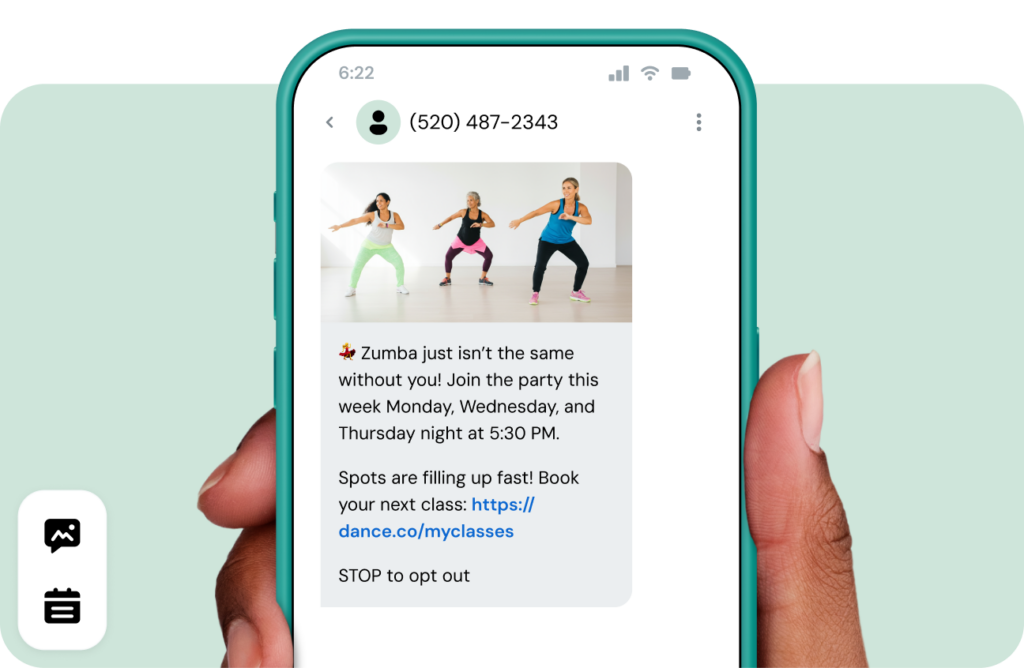
- Appointment reminders
- Feedback requests after support interactions
- Limited-time promotions
Step 2: Pick a reliable SMS integration
There are plenty of SMS tools out there, but not all play nicely with Salesforce or have enough functionality for timely, personalized customer messaging. Sinch SMS for Salesforce, though, is built for seamless CRM integration (meaning no data gaps or manual uploads) and it brings all the texting capabilities you need right into Salesforce.
It supports not only SMS, but also MMS and WhatsApp – most teams can get up and running in under 30 minutes. With this integration you can:
- Send individual, bulk, or workflow-triggered texts
- Log messages as Salesforce tasks
- Keep messaging data secure and compliant
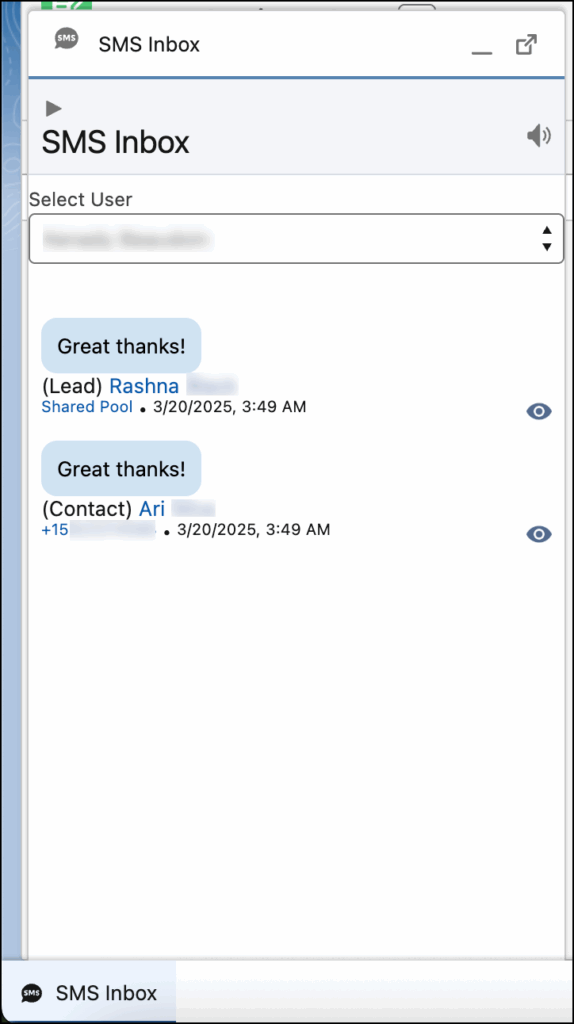
- View two-way conversations in the SMS Inbox
Step 3: Write messages that feel human
A great text is short, clear, and personal. Use the same tone you’d use in a quick conversation with a customer — friendly but professional.
Your message checklist
- Personalize it — include the contact’s name and your company name.
- Offer value — share something useful or relevant.
- Include a clear next step (a link, reply, or action).
- Keep it concise (ideally under 160 characters).
- Always include an opt-out line (“Reply STOP to unsubscribe”).
Example:
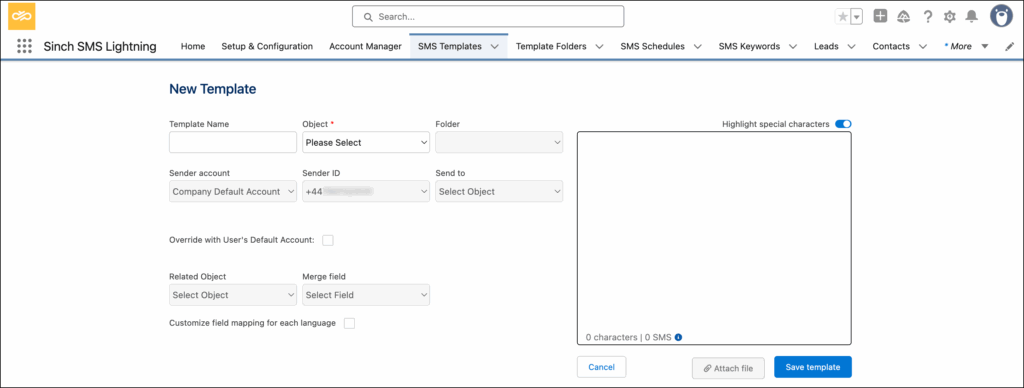
You can create and store reusable templates right inside Salesforce — here’s how in the Sinch help guide.
Step 4: Send at the right time
Timing can make or break your response rates. Multiple independent studies review SMS behavior and show 93% of consumers text every day, and nearly half (45%) check their text messages more than 10 times a day.
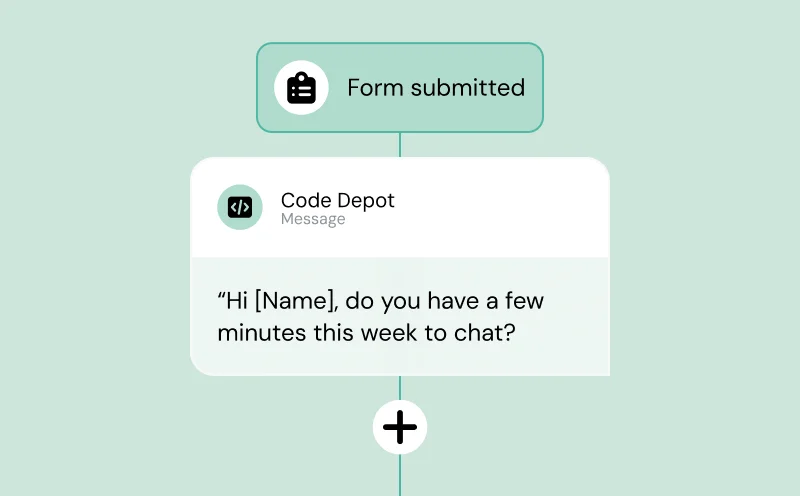
Inside Salesforce, Sinch’s scheduling and workflow features let you time messages based on your audience’s preferences. You can use flows to automatically send texts at the right moment — like after a form submission or when an opportunity moves stages.
Check out this walkthrough for setup steps.
Step 5: Automate responses with keywords
Want to save time on repetitive tasks? Use keywords to trigger automatic updates.
For example, when a customer texts “QUOTE,” Salesforce can:
- Create a new lead record
- Send an instant reply
- Add that contact to a follow-up campaign
It’s as easy as three steps:
- Pick a keyword
- Add it to your message or ad
- Let Salesforce handle the record updates automatically
Learn more in our Salesforce Inbound Messages guide.
Step 6: Save time with SMS templates in Salesforce
If you send similar texts regularly — like follow-ups, appointment reminders, or thank-yous — templates are your best friend.
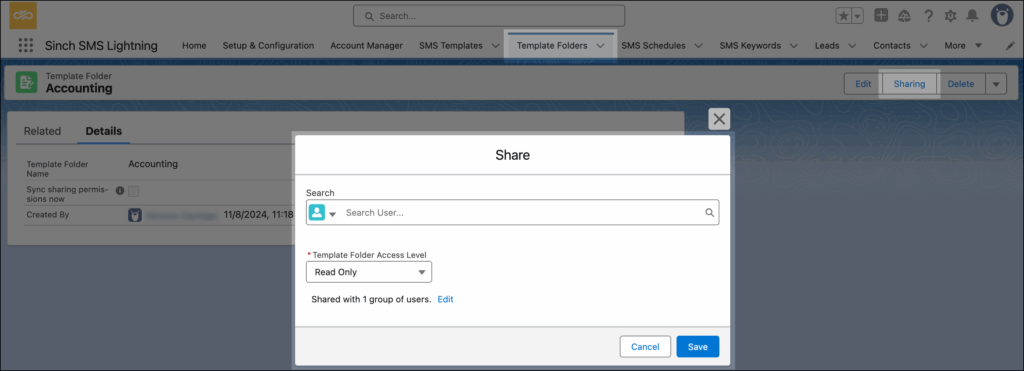
With SMS Template Folders in Salesforce, you can organize messages by campaign or team, personalize with merge fields, and keep your tone consistent across customer touchpoints.
SMS template best practices
- Keep templates under 160 characters
- Personalize key fields like names or appointment dates
- Reuse across campaigns for faster outreach
- Limit folder access when needed (to ensure appropriate usage)
Scale outreach and increase engagement with the best SMS integration for Salesforce
If you haven’t done it yet, adding SMS to Salesforce is one of the most valuable changes you can make to your customer outreach strategy.
And by following these six steps, you can go beyond the usual email and phone touchpoints (that struggle to cut through) and communicate with customers on a channel they’ll actually read and respond to.
Sinch Engage offers a trusted, powerful Salesforce SMS integration that drives results without a lot of effort. Ready to try it yourself? Explore our Salesforce SMS integration or try our messaging platform for free.
Explore more SMS marketing guides:

Author: